RedM / FiveM documentation
Murphy’s Platform
Setup and team
Discord bot
Authorize the bot, select channels and roles, and control its appearance.
Discord connects community-facing workflows to the Platform dashboard. One bot connection can power ticket panels, whitelist notifications, announcements, status embeds, role mapping, and the AI assistant.
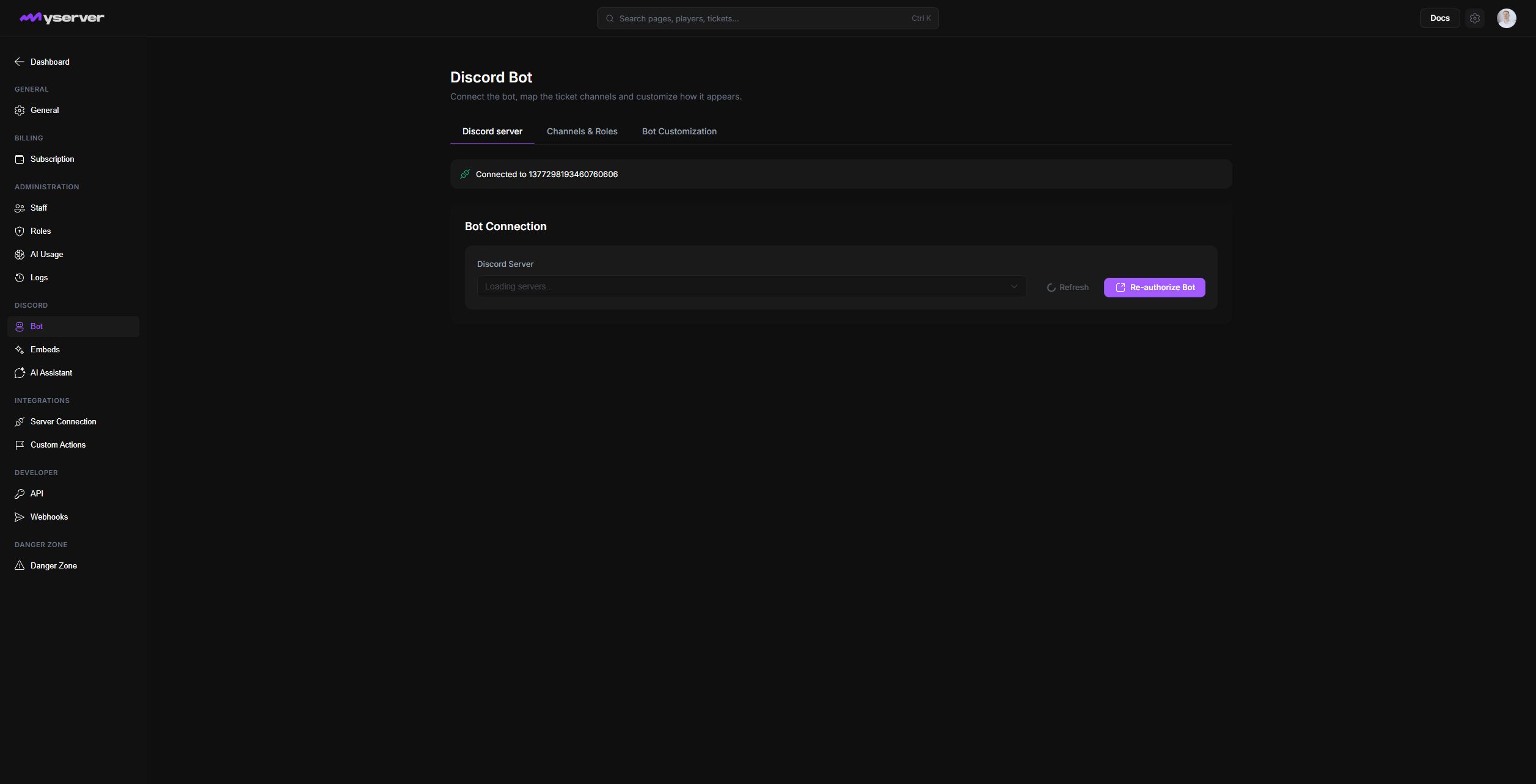
Connect the guild and map each workflow
Open Settings > Bot > Connection, then follow this order:
- Select the Discord server that belongs to the current Platform workspace.
- Select Add Bot, review the Discord authorization screen, and add Murphy Bot to that server.
- Return to Platform and select Refresh if the connection is not detected immediately.
- Complete the setup checklist by assigning the support channel, staff role, and support panel.
The person authorizing the bot must be able to manage the Discord server. Reauthorize Bot is useful after permissions were removed or the bot was added again. It does not erase Platform tickets or whitelist applications.
- Authorize the botAdd Murphy Bot to the guild used by the current workspace.
- Refresh the connectionReturn to Platform and confirm the guild is detected.
- Map staff and destinationsChoose the staff role, log, alert, review, and purchase channels.
- Configure public panelsSelect the support, whitelist, and interview-session destinations.
- Test before publishingSend a test log, then deploy and verify one panel at a time.
The connection alone does not decide where messages are sent. Open Channels & Roles and map each destination deliberately.
| Setting | What Murphy Bot sends or does there |
|---|---|
| Staff Role | Identifies Discord members who can receive staff-only ticket and alert actions. |
| Log Channel | Receives operational logs and the daily MyServer summary when analytics is available. |
| Alert Channel | Receives server alerts with a staff-only Acknowledge action. |
| Applications Review | Receives a private review thread for a Discord whitelist application. |
| Purchase Notifications | Receives a summary when Platform records a Tebex purchase. |
The Support Panel tab separately selects the public support channel and the Discord category used for private ticket threads. Whitelist Panel selects where the application link is published. Sessions Panel selects where interview slots are displayed.
Disable Notification Channels if the server should keep the connection but stop automatic logs, alerts, review notifications, and purchase messages.
Keep the Murphy Bot role above every Discord role it must assign. Grant only the permissions required by the workflows you enable.
Control identity and role automation
Whitelist settings can map pending, interview, approved, and rejected states to Discord roles. Platform removes the previous state role and applies the next one when staff approve, reject, revoke, or complete an interview.
Tebex role mappings work separately. When a purchase is synchronized and the buyer is linked to a Discord member, Murphy Bot applies the role mapped to the purchased package.
If a role does not change, verify all three conditions: the Discord member is identified, the destination role is mapped, and Murphy Bot is above that role.
Use Bot Customization to choose the shared Murphy bot or connect your own Discord application. The shared bot can use the configured server-facing name and presentation. A custom bot requires its own application and token, which Platform validates before exposing an invite link.
This changes how the bot appears in community interactions. It does not change staff permissions inside Platform.
Publish and recover one workflow at a time
Use Send test log in Channels & Roles after choosing a log channel. The test confirms that Platform can reach the correct Discord server and that Murphy Bot can write in that channel.
Then publish one panel at a time and verify it in Discord before adding the next workflow. The detailed publishing controls are explained in Discord panels, and the player-facing result is explained in Bot interactions.
If a workflow stops after Discord permissions or server ownership changes, re-authorize the bot, refresh the available channels and roles, then save the mapping again.
If only one workflow fails, check its selected channel and stored panel message before reconnecting the whole bot. Moving or deleting a Discord channel does not automatically select a replacement in Platform.
Last updated: September 11, 2026