RedM / FiveM documentation
Murphy’s Platform
Setup and team
Staff and roles
Invite staff and give each person the smallest access level they need.
Staff access is managed per server. A Webba ID account can belong to several server workspaces with a different role in each one.
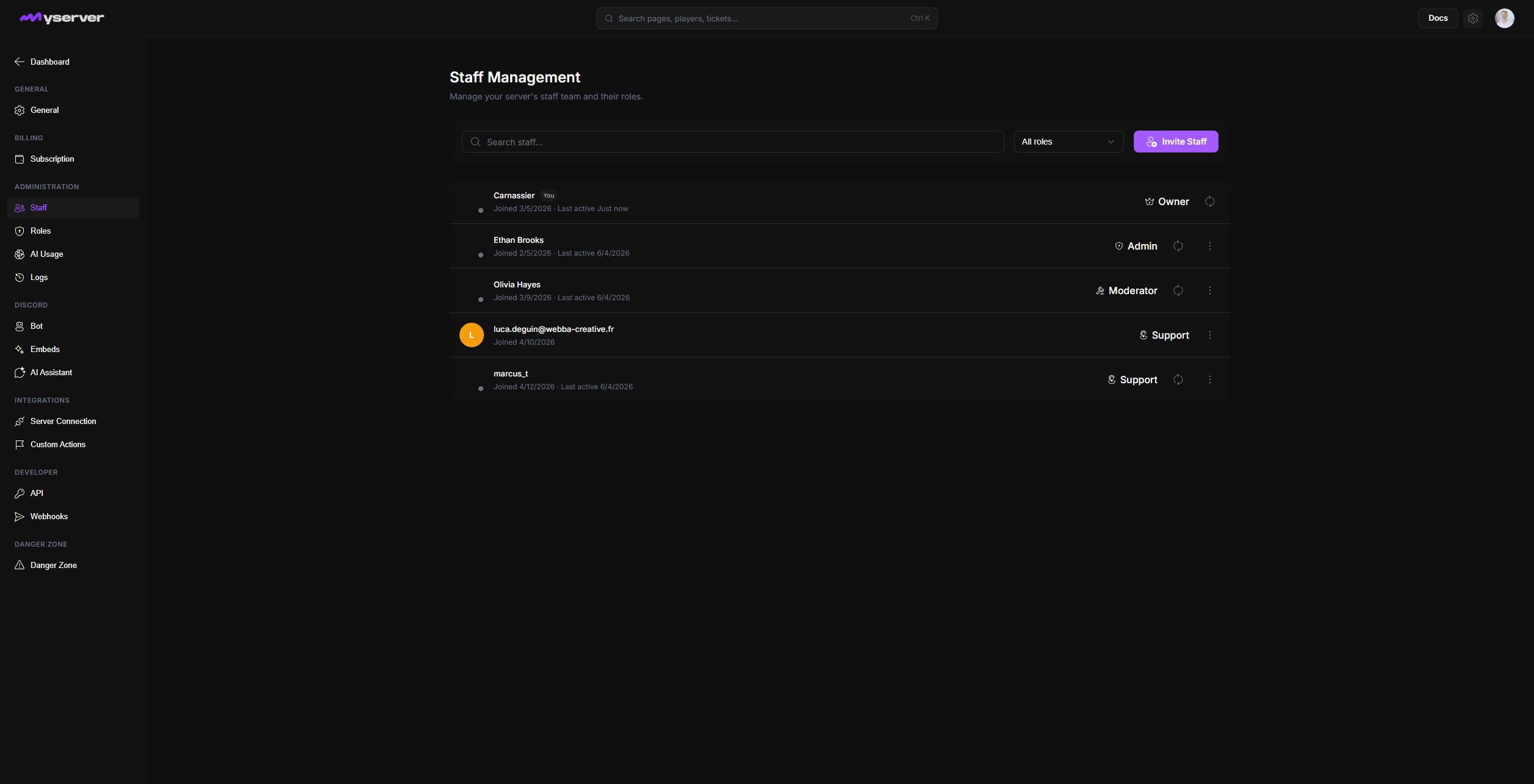
Add a staff member
Open Settings > Staff and select Invite Staff. The dialog has two invitation paths:
- Discord searches members of the connected MyServer Discord. Select the matching member, then assign the initial Platform role.
- Email sends an invitation to the Webba ID email address entered in the form.
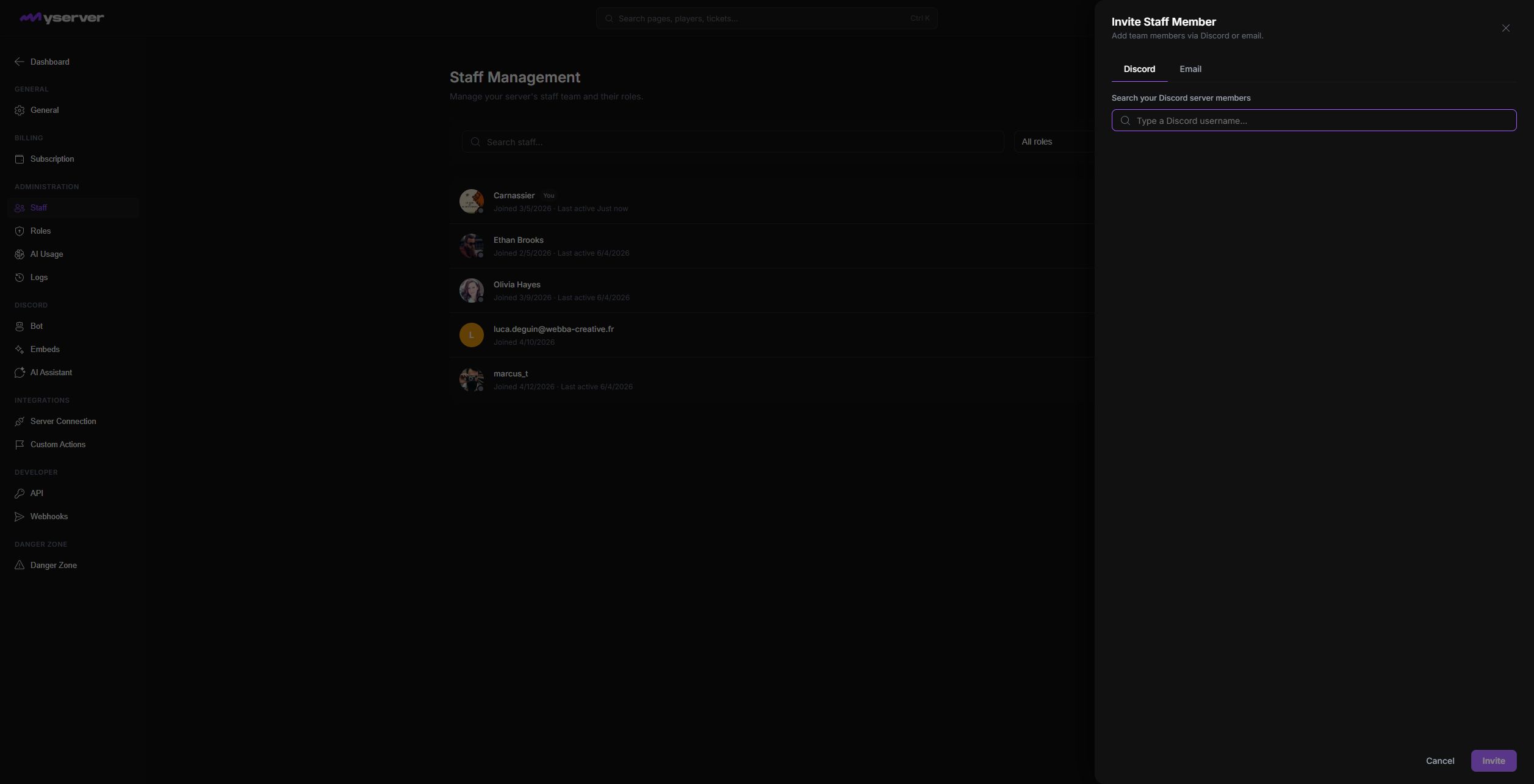
The person sees the server in their server selector after the invitation is accepted or the membership becomes active.
Design roles before assigning people
The standard hierarchy is:
- Owner controls the workspace, billing, and destructive server actions.
- Admin manages configuration and most operational areas.
- Moderator handles player and community operations.
- Support works with limited queues such as tickets and player lookup.
The exact access is visible in Settings > Roles. Select a role in the left rail to open its editor. The Permissions tab groups every surface by Engagement, In-game, Operations, Configuration, and Capabilities.
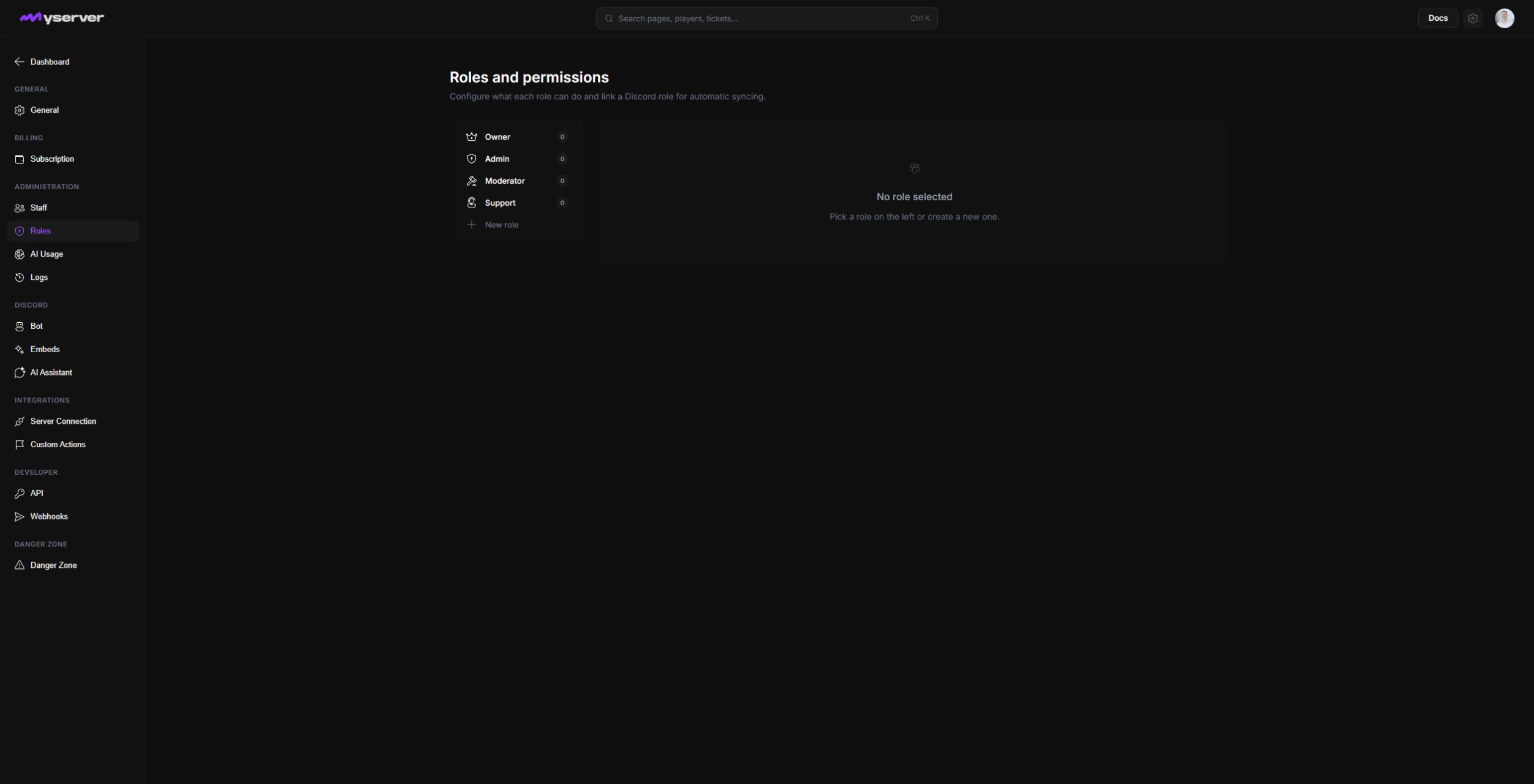
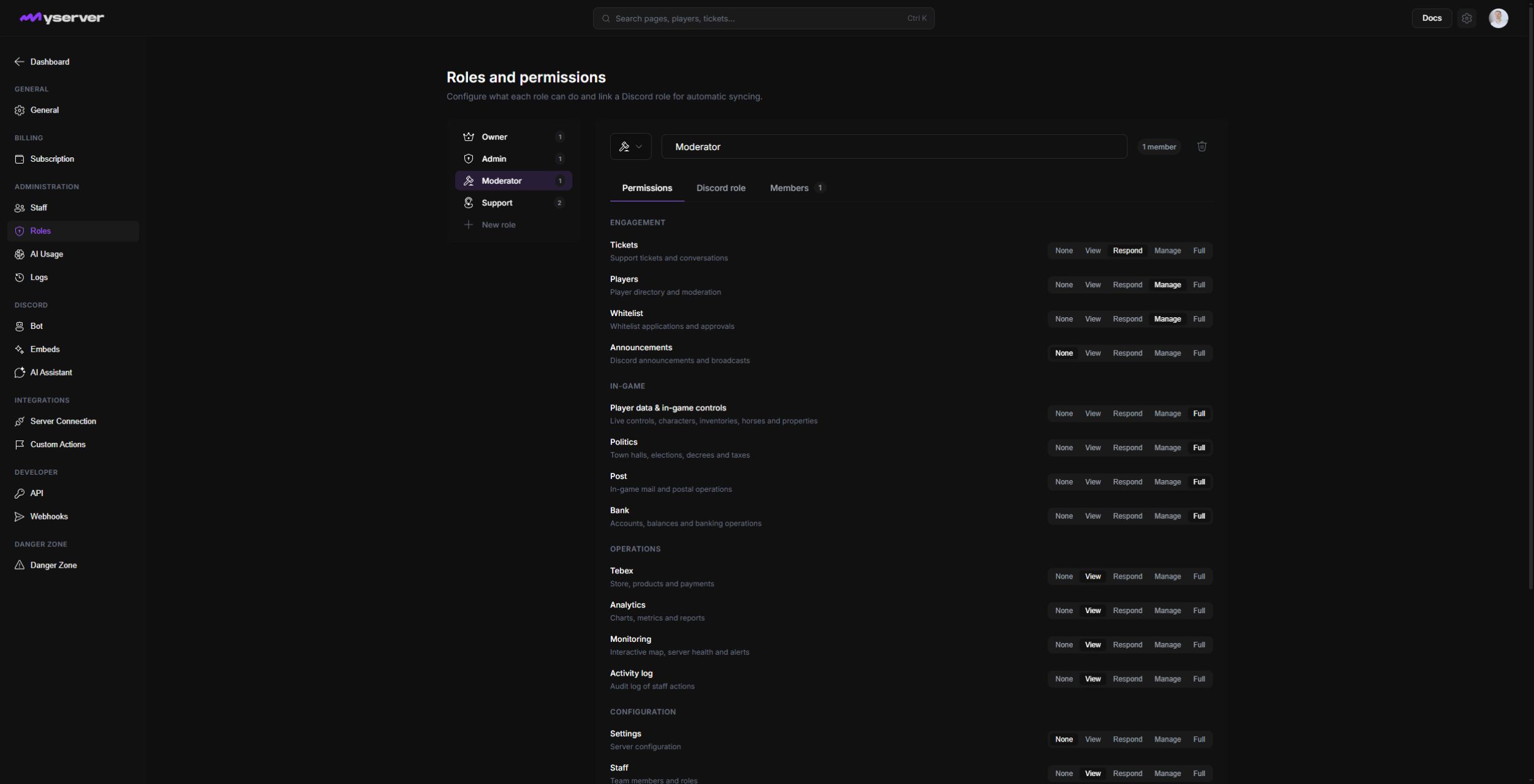
Each area uses the same progression: None, View, Respond, Manage, and Full. The descriptions beside an area define what it covers; for example, Monitoring includes the Live Map, server health, and alerts. Capability switches separately control dashboard access, opening-hours bypass, and public-team visibility.
Use least privilege:
- Give view access when the person only needs context.
- Give operational access when they must complete routine actions.
- Reserve full configuration and destructive access for trusted administrators.
Open the role's Discord role tab and choose a Discord role from Linked Discord role. When linked, gaining that Discord role adds the staff membership and losing it removes the membership. Leave the field empty when Platform membership must be managed independently.
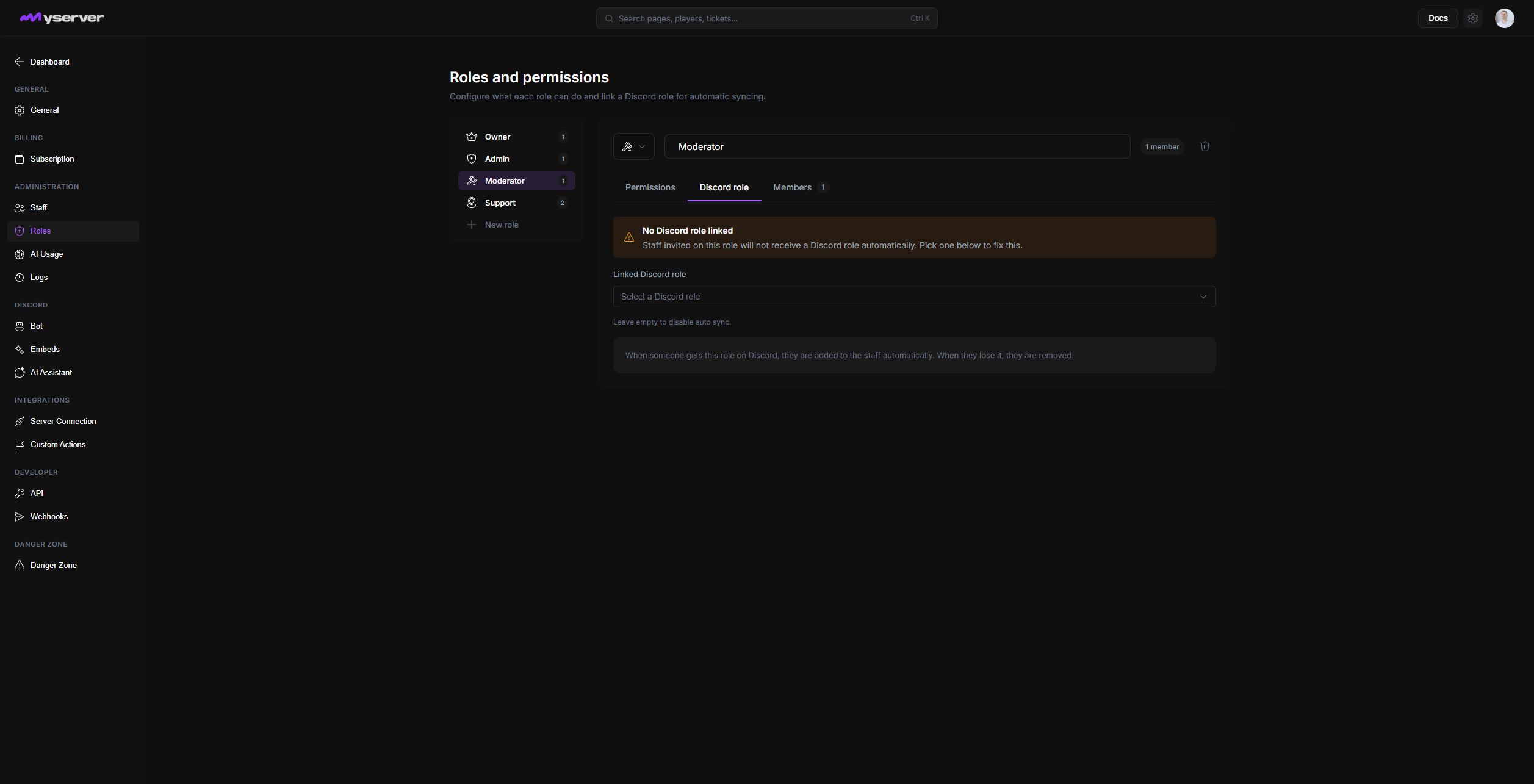
Use the Members tab to verify who currently inherits the selected role before changing permissions or the Discord mapping.
When access ends, remove the membership and review any API keys, Discord roles, webhook destinations, or bot permissions the person managed. The Logs page provides an audit trail for staff actions.
Last updated: September 11, 2026