RedM / FiveM documentation
Murphy’s Platform
Automation and Discord
Bot interactions
Follow every member and staff interaction that Murphy Bot exposes in Discord.
Murphy Bot turns Platform workflows into Discord interactions. Most member actions are either private to the member or take place in a private thread. Staff activity and the resulting state remain visible in Platform.
Follow the complete support journey
- Choose a ticket typeThe member uses the panel or `/ticket` and completes any configured questions.
- Create the private threadMurphy Bot confirms privately, adds the member, and creates the Platform ticket.
- Continue from either surfaceDiscord messages and Platform staff replies stay synchronized.
- Escalate when neededTalk to Human disables AI handling and alerts the configured staff role.
- Close and rateConfirmation, satisfaction, final close, and reopen remain attached to the ticket.
Open a ticket from a panel
In the support channel, the member selects the button that matches the issue. For MyServer, selecting General Support starts the configured general support flow.
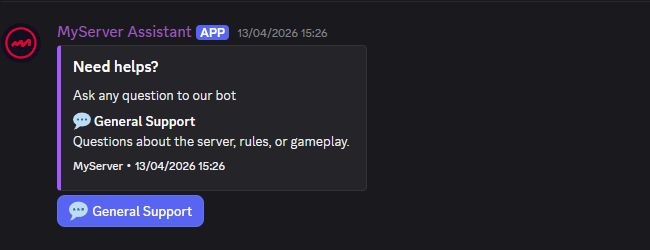
What happens next depends on the ticket type:
- If the type has no fields, Murphy Bot creates the ticket immediately.
- If fields are configured, Discord opens a private modal with up to five questions.
- After submission, the member receives a private confirmation and Murphy Bot creates a private thread under the configured support channel.
- The bot adds the member to the thread, posts the ticket number and submitted details, and creates the matching ticket in Platform.
A member can have only one open ticket in the Discord server. If another ticket is already open, the bot returns its channel instead of creating a duplicate.
The /ticket command reaches the same ticket system without using the panel. Staff with the required role can use /staffticket to open a ticket on behalf of another member.
Continue the conversation
Messages sent in the private Discord thread are synchronized to the Platform ticket. Staff replies sent from Platform are posted back into the same thread. Supported attachments, message edits, deletions, and reactions are also tracked by the bot services.
If AI is enabled for the selected ticket category, the welcome message identifies the automated path and the assistant can answer from the configured knowledge. The response is visibly marked as AI-generated.
The member can select Talk to Human. Discord first asks for confirmation. After confirmation, Platform marks the ticket as escalated, Murphy Bot posts the escalation in the thread, and the configured staff role is notified. Categories configured as human-only skip AI from the start.
Close, rate, or reopen
Selecting Close Ticket opens a confirmation step. After confirmation, the ticket moves to the closing flow and the member can rate the support experience from 1 to 5.
After the rating, the bot offers two final actions:
- Confirm & Close completes the ticket and its Discord thread lifecycle.
- Reopen returns the ticket to the active support flow.
The rating and optional feedback are stored with the Platform ticket and contribute to support analytics.
Follow the whitelist and interview journey
- Start the applicationOpen the public form from the panel or use `/apply` for the Discord-native form.
- Pass the eligibility checksAccount age, cooldown, active application, and form availability are verified.
- Enter staff reviewAnswers, quiz score, history, and decisions stay synchronized with Platform.
- Receive the decisionState roles and direct messages reflect approval, rejection, or interview pending.
- Register for an interviewEligible applicants choose a session and manage their registration privately.
Apply for the whitelist
Members have two entry points:
- The published Whitelist Panel opens the server-specific public application page.
/applyopens the Discord-native modal when the active form fits Discord limits.
Before showing the Discord form, the bot checks that whitelist is enabled, the member has no active application, the Discord account satisfies the minimum age, the rejection cooldown has expired, and an active form exists. The native modal displays at most five fields.
After submission, Platform stores the answers and quiz result. When an applications review channel is configured, Murphy Bot creates a private review thread containing the applicant, status, answers, score, previous rejection count, and staff decision buttons.
If automatic quiz rejection is enabled and the score is below the configured threshold, the application is rejected immediately. Otherwise it enters the staff review queue in Platform.
Receive a decision
When staff approve, reject, revoke, or complete an interview, Platform updates the application and player whitelist status. Murphy Bot then applies the mapped Discord state roles and sends the applicant a direct message when applicant notifications are enabled.
If approval moves the application to Interview pending, the direct message can include a link to the published Sessions panel. A final approval removes the interview role and applies the approved role. A rejection removes incompatible state roles and can apply the rejected role.
Register for an interview session
On the Sessions panel, an applicant selects Register. The bot replies privately with a menu of future sessions that still have capacity. Only Interview pending applicants can register.
After choosing a session, the registration is stored in Platform and the live session count can be refreshed in the panel. If multiple registrations are disabled, the applicant must leave the existing future session before choosing another.
My Registrations replies privately with the applicant's upcoming registrations and an option to unregister. Approved members, pending applications, rejected applications, and members without an application receive a private explanation instead of a registration menu.
Use commands and understand automatic messages
Slash commands
| Command | Audience | Result |
|---|---|---|
/ping |
Everyone | Checks whether the Discord server is linked to Murphy’s Platform. |
/ticket |
Everyone | Opens a support ticket from a subject and category. |
/apply |
Everyone | Opens the Discord-native whitelist application. |
/stats |
Linked player | Shows the member's own player statistics. |
/player |
Staff | Finds a player by name, Discord username, or Steam ID. |
/staffticket |
Moderator or above | Opens a support ticket for another Discord member. |
/warn |
Moderator or above | Records a warning for a player. |
/ban |
Admin | Bans a player with a reason and optional duration. |
/setup-panel |
Admin | Publishes the configured support panel in its selected channel. |
Staff commands reply privately where appropriate. Platform plan access and the configured staff role are checked before player or ticket actions run.
Automatic Discord messages
Murphy Bot also publishes without a member clicking first:
- Daily summary is sent to the log channel after 08:00 UTC and summarizes the previous day: unique and new players, opened and resolved tickets, revenue, uptime, average latency, and support satisfaction.
- Server alerts are sent to the alert channel. Staff can select Acknowledge, which records who acknowledged the alert in Platform.
- Purchase notifications are sent when Platform records a Tebex purchase and include the customer, amount, and purchased items.
- Scheduled announcements are posted to their selected channel when their delivery time is reached.
- Status and player counter messages expose the configured live server state in Discord.
In MyServer, the daily card groups the five operational signals into one compact staff message. Read each value as a summary for the preceding reporting period; open the matching Platform workspace when a value needs investigation.
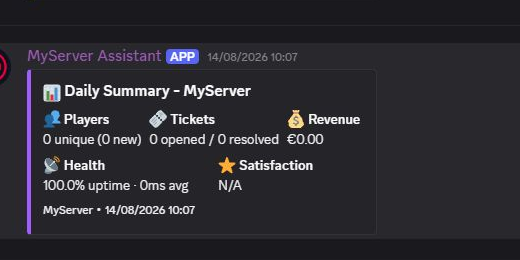
Use separate channels when the audiences differ. Daily summaries and alerts usually belong in a staff channel, while support, whitelist, sessions, announcements, and status surfaces are normally member-facing.
Last updated: September 11, 2026