RedM / FiveM documentation
Murphy’s Platform
Automation and Discord
AI assistant
Configure ticket assistance, knowledge, tone, escalation, and SLA behavior.
The AI assistant helps with support workflows. It does not replace staff accountability for moderation, billing, access, or high-impact decisions.
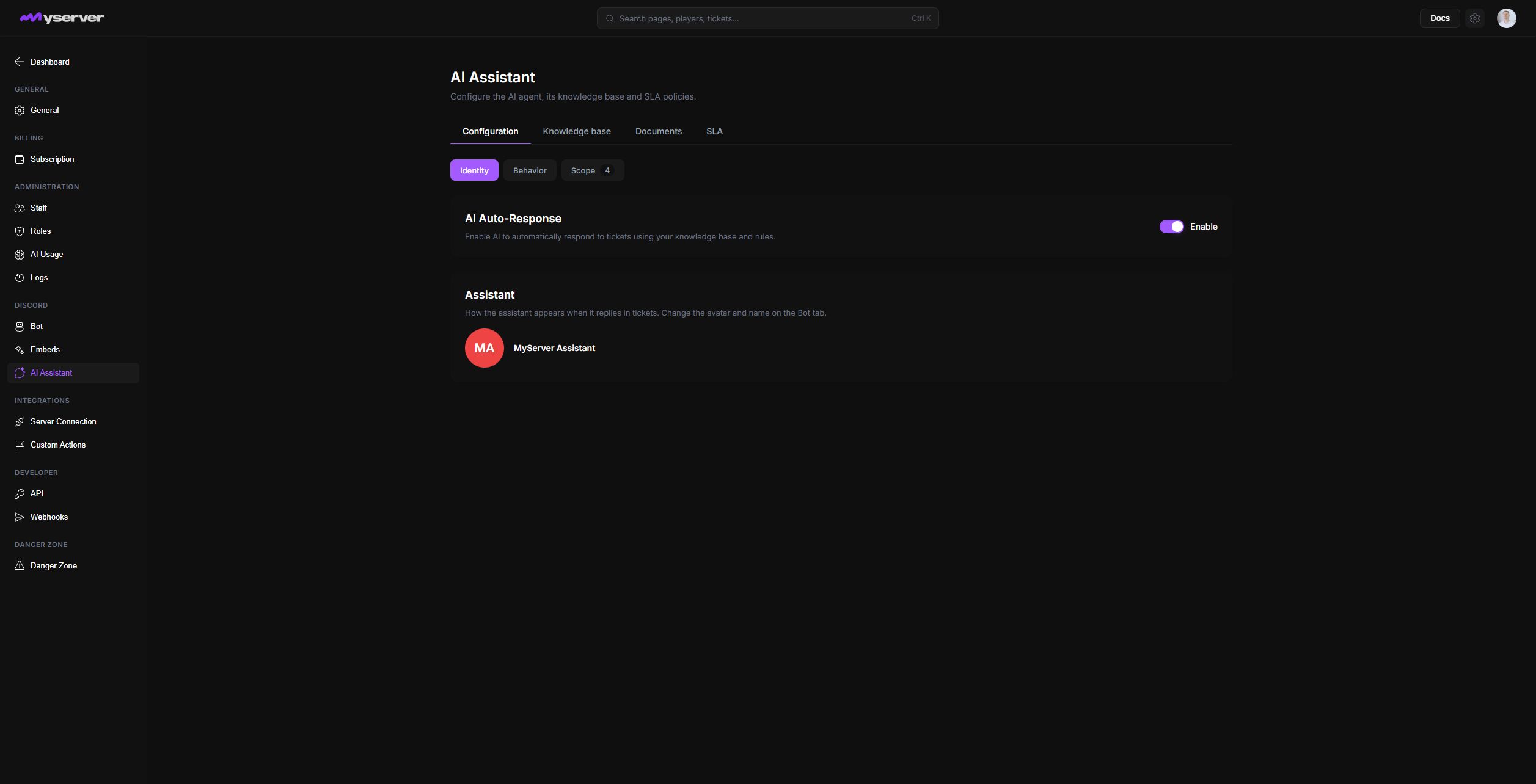
Configure the source, behavior, and escalation boundary
Knowledge sources
Manual Q&A
published Public Site
uploaded documents
AI support scope
Enabled ticket types
tone and rules
confidence and escalation threshold
Ticket outcome
Marked AI reply
Talk to Human
staff escalation
transcript and satisfaction review
Assistant identity and behavior
Open Settings > Bot > AI Assistant. The page is split into three sub-tabs:
- Identity enables automatic responses and previews the bot identity members will see.
- Behavior selects Professional, Friendly, or Casual tone, stores server rules, and defines the automatic escalation threshold.
- Scope selects the exact support ticket types that may receive an AI response.
Enable only categories whose answers can come from stable server information. Leave moderation appeals, payments, partnerships, account recovery, and other decision-heavy categories human-only.
The Discord member sees the configured bot name and avatar. Every automated answer includes an AI-generated warning and keeps Talk to Human available.
Knowledge source
Open Knowledge Base to create question-and-answer entries. Each entry has a category and active state. Use Sync after changing the server's public site or connected content so the assistant receives the current source.
The knowledge source can include:
- Active manual question-and-answer entries.
- The server's published Public Site content.
- Documents uploaded in Documents, including supported PDF, DOCX, text, Markdown, CSV, JSON, and log files.
Search and category filters help find stale entries. Disable an entry while rewriting it instead of leaving an uncertain answer active.
Good knowledge content explains the player-facing policy, the expected steps, and when a human must take over.
Escalation boundaries
The escalation threshold controls how many unsuccessful automated exchanges can occur before the assistant hands the ticket to staff. A member can also select Talk to Human at any time.
After confirmation, Murphy Bot disables further AI handling for that ticket, posts an escalation notice in the private thread, and notifies the configured staff role. The same escalated state appears in the Platform ticket.
Escalate immediately when confidence is low, the requester rejects the answer, the topic needs a staff decision, or the case includes sensitive account, payment, moderation, or personal information.
Review quality and usage
Plan access determines the available AI allowance. Use Settings > AI Usage to compare the cycle allowance, used responses, remaining responses, recent daily activity, and reset date.
In Tickets, review the transcript, AI state, escalation, final resolution, and satisfaction rating. Repeated escalation on the same question usually indicates missing or unclear knowledge. Improve the source content before increasing the number of automated categories.
Staff should review AI-assisted conversations through the same ticket and audit processes as human responses.
Last updated: September 11, 2026