RedM / FiveM documentation
Murphy’s Platform
Automation and Discord
Discord embeds
Configure status, support, and community embeds from reusable settings.
Embeds control the structured messages Murphy Bot publishes for supported workflows.
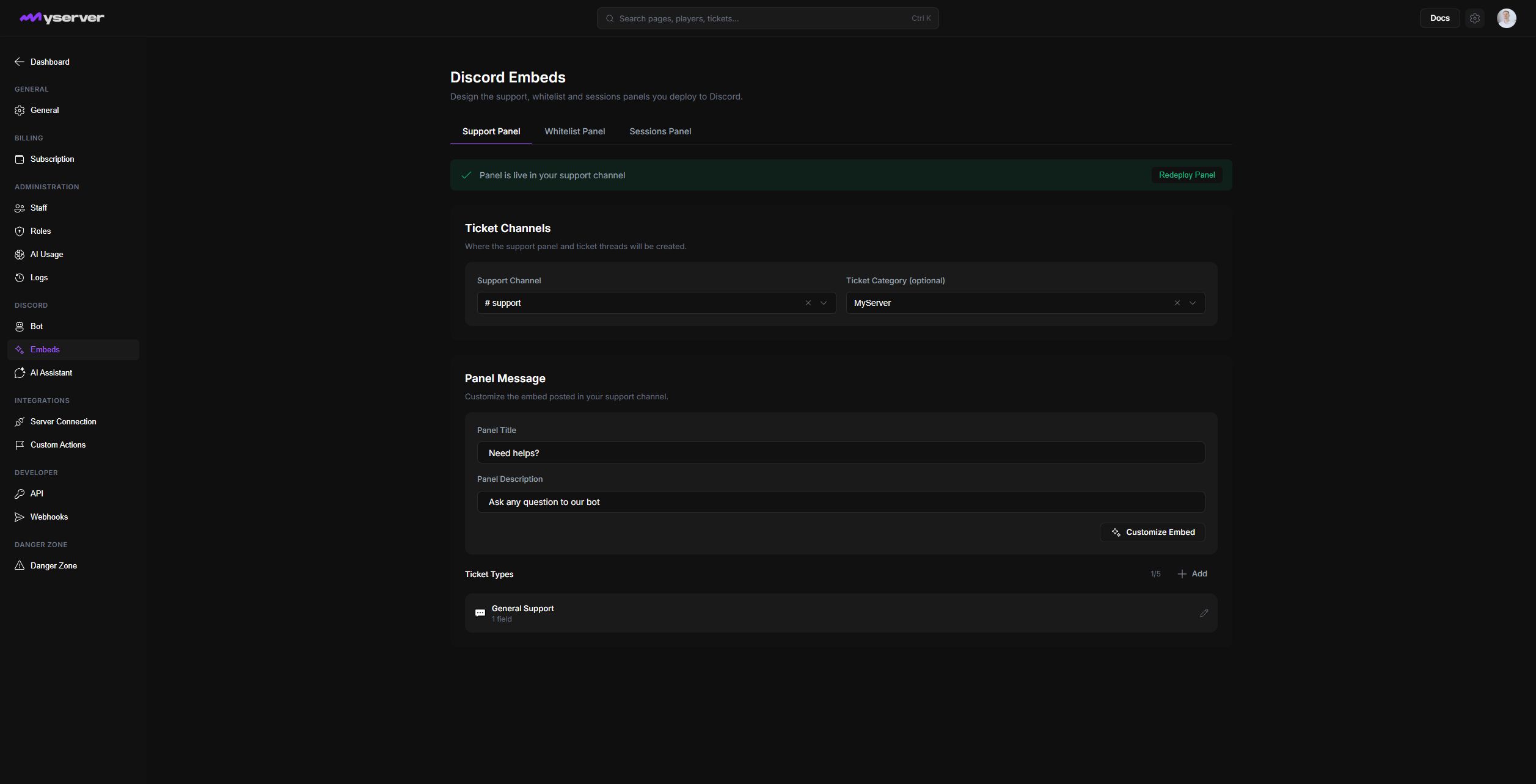
Publish the three member entry points
The MyServer tabs publish three different entry points:
| Panel | Visible action in Discord | Result for the member |
|---|---|---|
| Support Panel | One button per configured ticket type | Opens the type form when fields are configured, then creates a private ticket thread. |
| Whitelist Panel | An application button | Opens the public MyServer application page for the current server. Members can also use /apply for the Discord-native form. |
| Sessions Panel | Register and My Registrations | Shows private session choices or existing registrations to an eligible applicant. |
Each tab exposes only the channel, copy, and actions used by that workflow. Saving one panel does not publish or replace the other two.
- Choose the workflowSupport, whitelist application, and interview sessions have separate panels.
- Select the destinationMap the exact public Discord channel and any required private category.
- Configure content and actionsSet the copy, ticket types, application link, or session behavior.
- Preview and saveReview the Discord presentation without publishing yet.
- Deploy and test liveVerify permissions and interactions with the expected member state.
Support panel
Open Support Panel, then:
- Choose the public Support Channel where members will find the panel.
- Choose the Ticket Category under which private ticket threads should be created.
- Set the panel title and description.
- Select a ticket type card to edit its label, emoji, and form fields.
- Select Customize Embed to edit the Discord presentation.
- Save the settings, then select Deploy Panel.
MyServer currently shows one General Support action. Clicking it starts the private support flow described on Bot interactions.
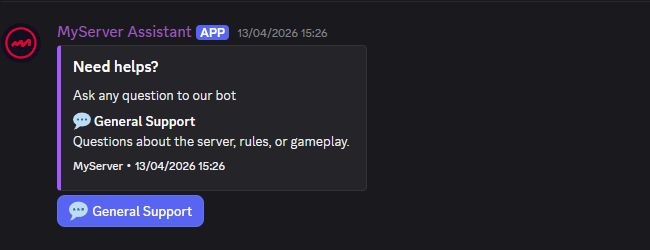
Keep ticket labels short and outcome-focused. The panel supports up to five ticket types, and each type can ask up to five Discord modal fields.
Whitelist panel
Open Whitelist Panel, select the public channel, then write the application title and description. Customize Embed controls the presentation of the published message.
The panel button opens the server-specific public application page. The form, account requirements, cooldown, quiz scoring, review stages, applicant messages, and roles still come from the Whitelist workspace. Changing the embed never changes those rules.
Sessions panel
Enable interviews and create at least one future whitelist session before publishing this panel. In Sessions Panel, choose the channel, set the title and description, save, then select Deploy Panel.
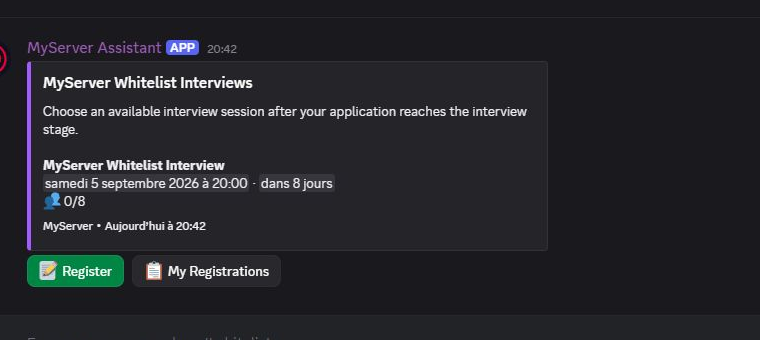
The panel lists upcoming sessions and their capacity. Refresh Panel rebuilds that list after staff add, cancel, or reschedule sessions. Registration buttons only work for applicants whose current status is Interview pending.
The MyServer example below exposes the session name, localized date, remaining capacity, and the two member actions. Select Register to choose an eligible future slot. Select My Registrations to review or leave an existing booking.
Design, publish, and verify the live message
The dialog has Edit and Preview tabs. Edit exposes the supported title, description, color, fields, footer, and media controls; Preview renders the Discord-style message and action buttons. Done closes the editor locally. Use Redeploy Panel on the page to publish the updated panel to Discord.
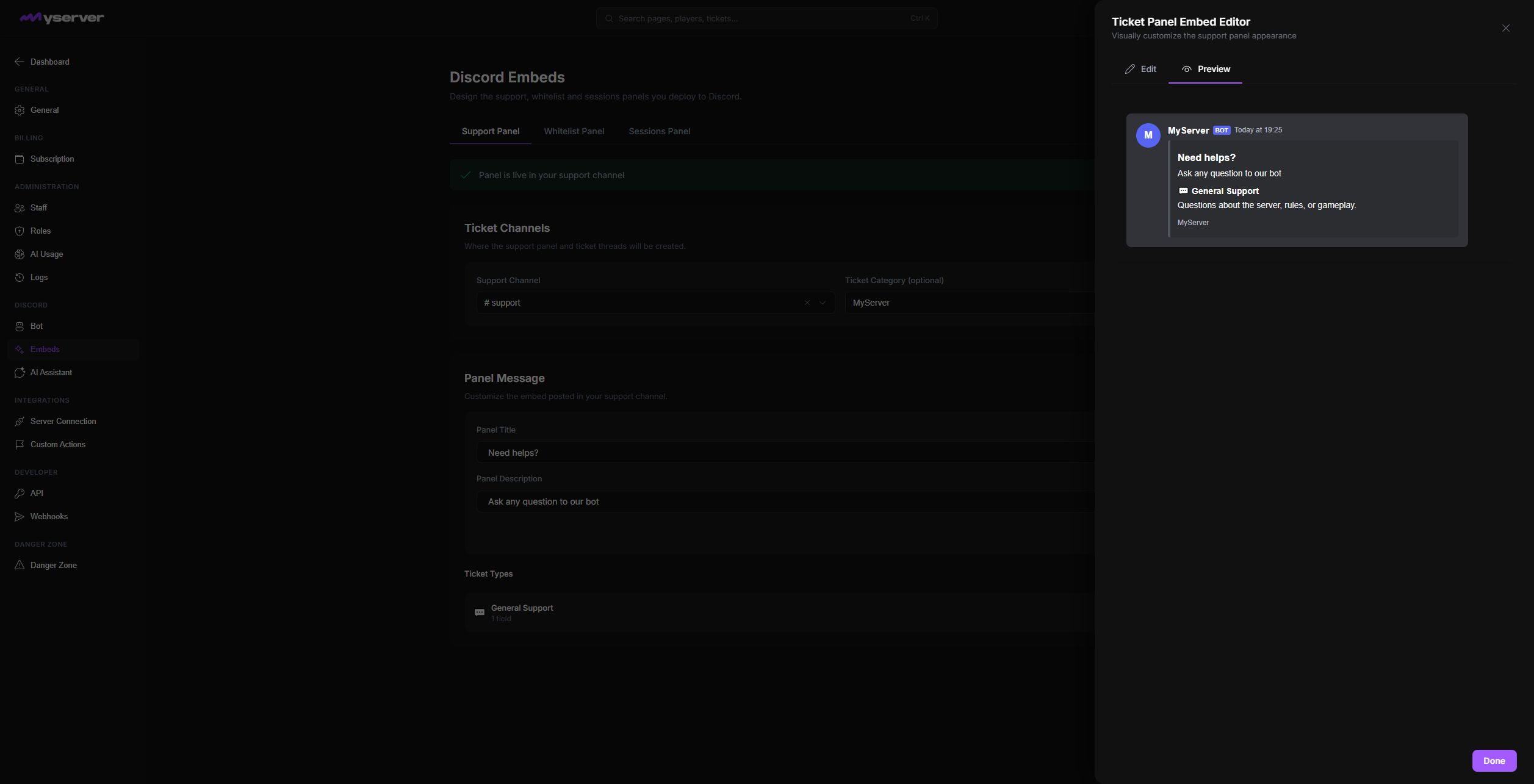
The actions have different scopes:
- Done accepts the current embed design in the editor.
- Save stores the panel settings in Platform.
- Deploy Panel creates the first live Discord message.
- Redeploy Panel deletes the previously tracked panel message and posts the current version as a new message.
- Refresh Panel rebuilds the live Sessions panel from the current session schedule.
Open the selected Discord channel and verify the title, description, buttons, and bot identity. Test the panel with an account that has the expected applicant state. A visual preview confirms the layout, but only the live message confirms permissions and interaction routing.
If deployment fails, verify that Murphy Bot can view the channel, send messages, embed links, create private threads where required, and use application commands. Also verify that the channel still matches the saved selection.
Last updated: September 11, 2026