RedM documentation
Murphy's Interact
Getting Started
Configuration and Styles
Choose a menu style and adjust visibility.
Murphy Interact settings are stored in shared/settings.lua. Back up this file before editing it, and preserve the surrounding Lua table.
Choose a visual style
Set Style to either redm_native_murphy or redm_native_muziq. Both texture dictionaries are included in the stream folder.
The public release images below illustrate the available visual presentation. Use the Style setting to select the dictionary on your server.
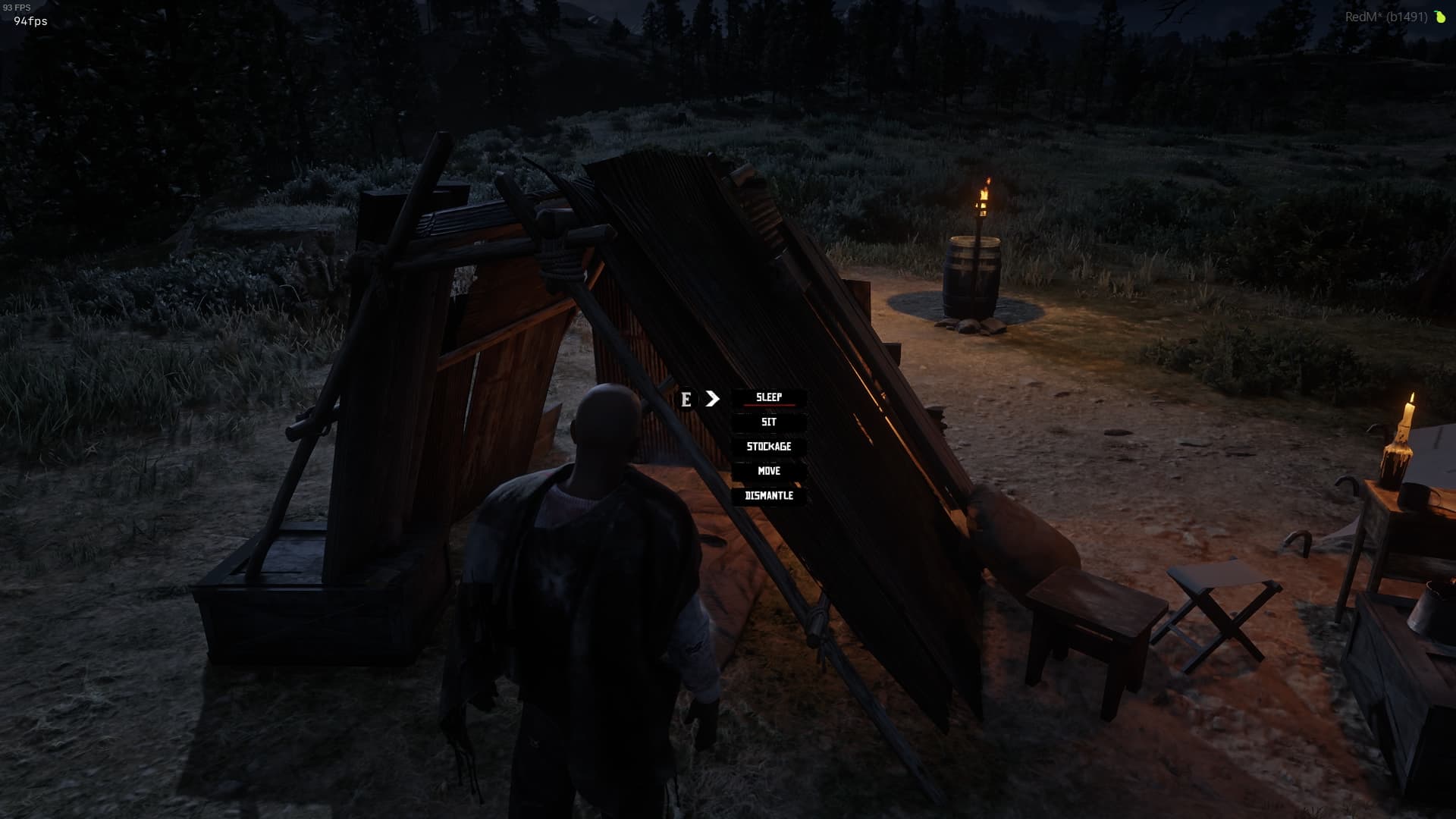
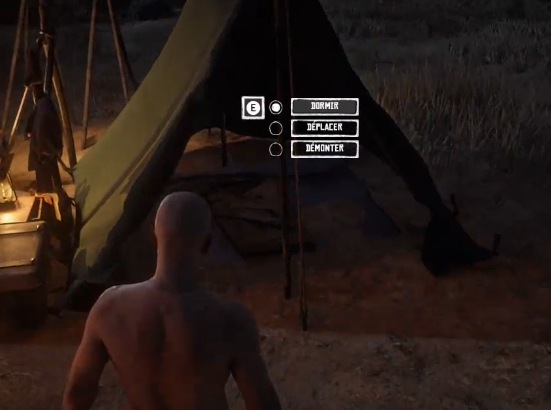
Keep the supplied Textures entries when using the included styles. After changing Style, restart Murphy Interact and then the resources that use it.
Visibility settings
These settings control when interaction menus are hidden. All four are enabled by default.
| Setting | When interactions are hidden |
|---|---|
Disable.onDeath |
While the player is dead or dying. |
Disable.onNuiFocus |
While another interface has focus. |
Disable.onVehicle |
While the player is identified as being in a vehicle. |
Disable.onHandCuff |
While the player is handcuffed. |
For example, keep onNuiFocus = true to avoid displaying interaction menus over an open interface.
Apply your changes
Save the file and restart the resource, followed by the resources using its interactions. Check a familiar interaction in-game. If its appearance does not load, confirm that Style exactly matches one of the included dictionary names and that the stream folder is present.
Last updated: September 15, 2026