RedM / FiveM documentation
Murphy’s Platform
Monitoring and insights
Live Map
Track current player positions, clusters, custom markers, and optional trails.
The Live Map combines live player positions, staff POIs, synchronized properties, disconnect history, and player actions in one operational view. Open Live Map from the server sidebar and wait for the map tiles and markers to finish loading before acting on a position.
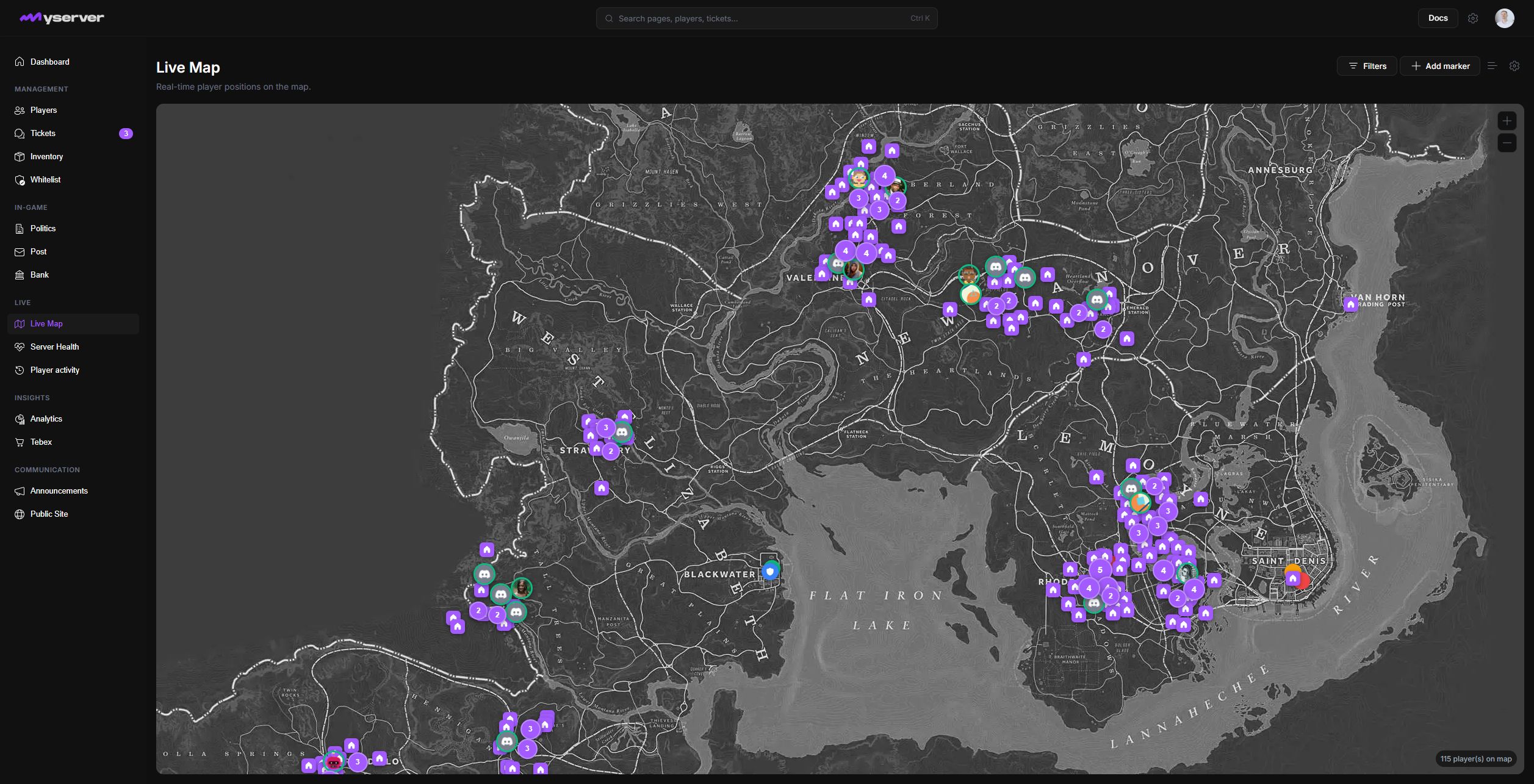
Control the map and act on a player
Select Filters in the top-right toolbar. Each switch controls a separate layer:
- Players shows the latest position received for each connected player. Nearby players are grouped into numbered circles at wider zoom levels.
- Markers shows the POIs managed by staff, such as sheriff offices, businesses, landmarks, or staff-only locations.
- Properties shows properties synchronized by the supported real-estate resource. Nearby properties are grouped at wider zoom levels to keep dense towns readable.
- Disconnects shows recorded disconnect locations when position history is available for the server plan.
The player total in the bottom-right corner is the number of player position records plotted by the current data set. It does not change when you temporarily hide the Players layer.
Player popups and action sheet
Zoom in until an avatar marker is visible, then select the avatar. The popup identifies the Platform player and current character, shows the session ID when available, labels the position as Live, Delayed, or Stale, and displays the last coordinates and update time.
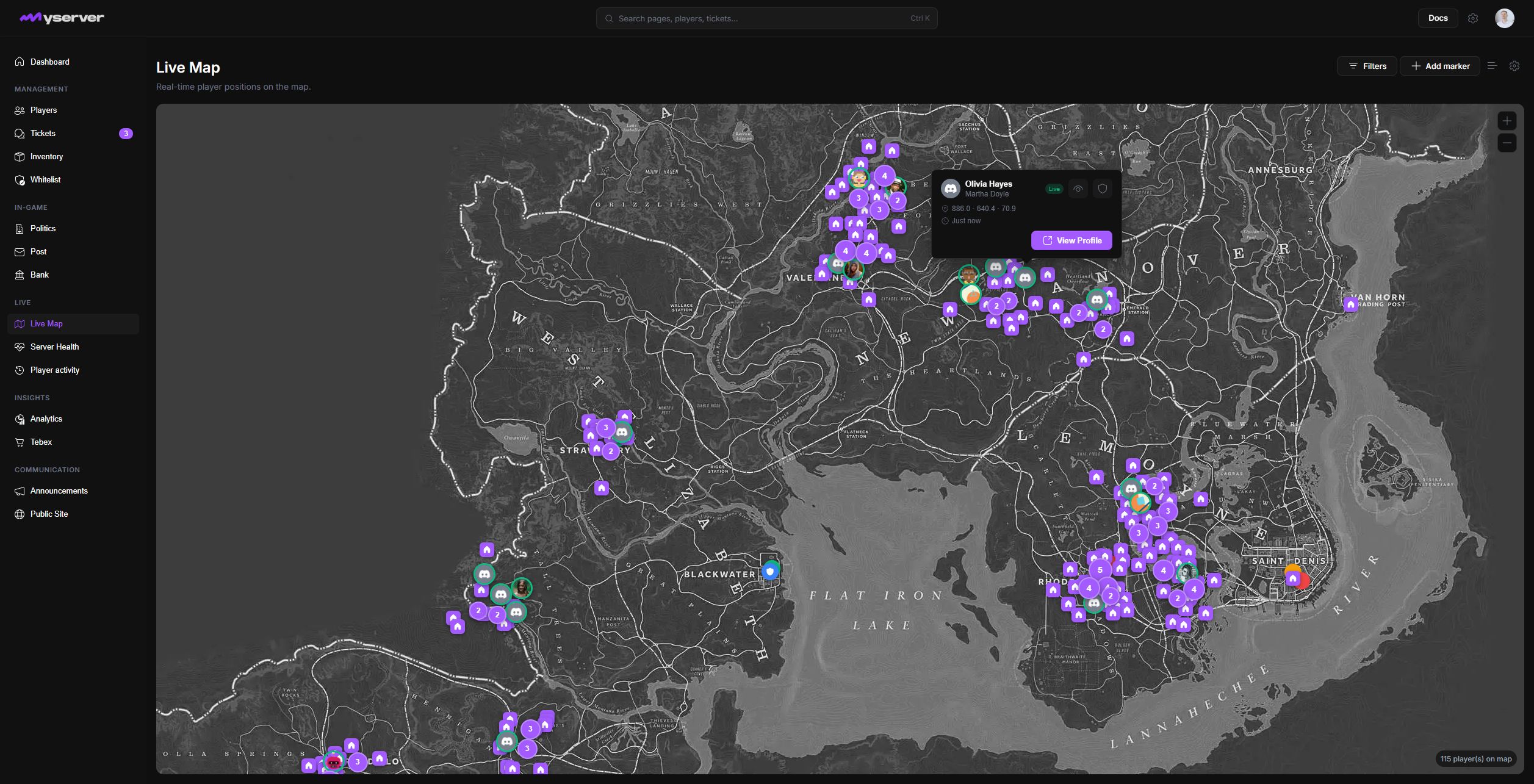
From the popup:
- Select View Profile to open the complete player profile.
- Select Track to isolate the player and follow the available position trail. Tracking requires recorded position history.
- Select Actions to open the operational action sheet for that player.
The action sheet is split into Moderation, Movement, and Control. It can expose Kick, Ban, Warn, Message, Teleport, Freeze, Unfreeze, Heal, Revive, Mute, and Unmute according to the staff role and connected server resources. Opening the sheet does not send a command; selecting an action starts that action's confirmation or input flow.
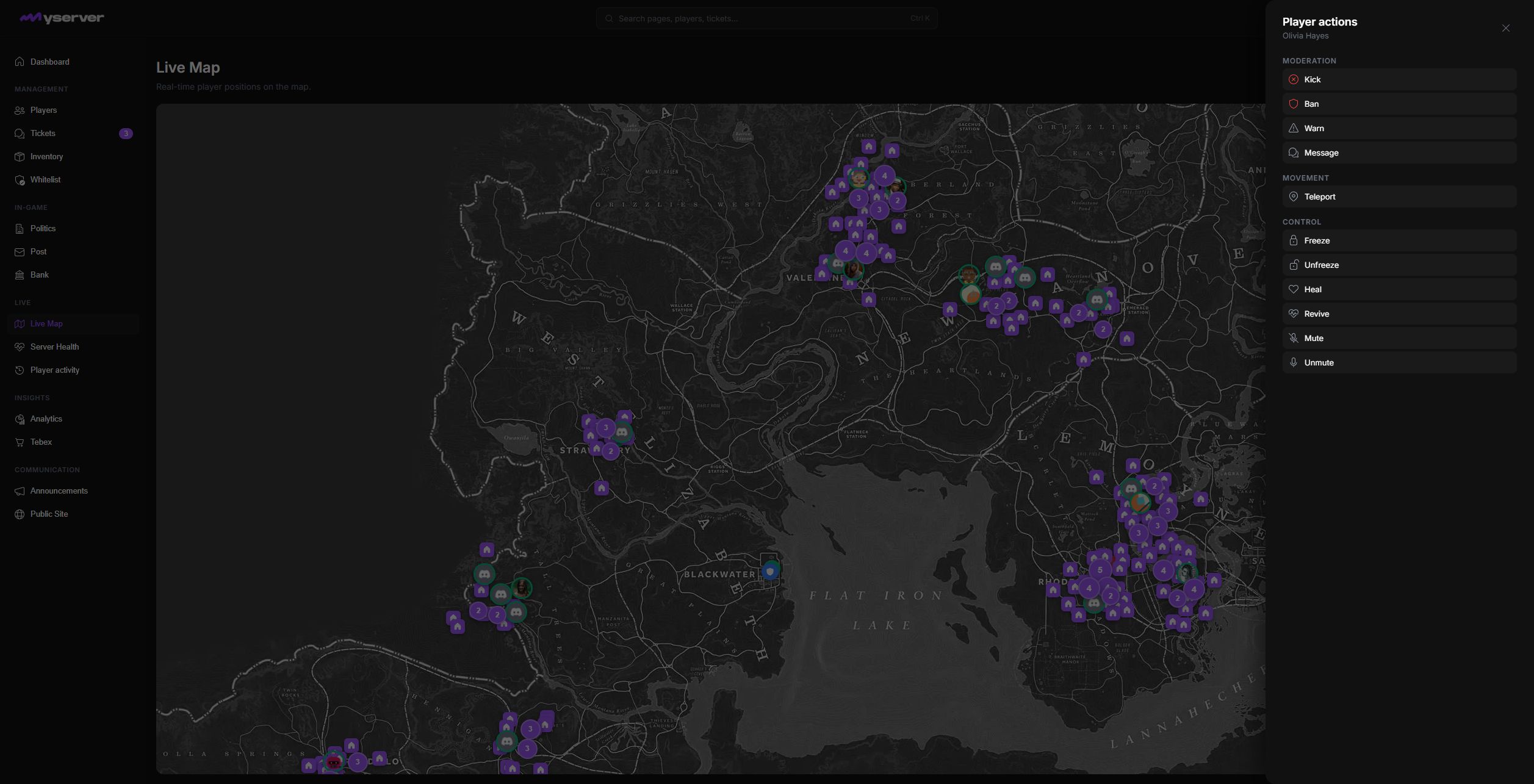
For a numbered player cluster, select the cluster to review the players inside it or use Zoom in to separate their markers. Always verify the player name, character, coordinates, and freshness before sending an action.
Manage properties and staff POIs
Open Filters, enable Properties, and temporarily disable Players if avatars cover the property you need. Select a house marker to open its popup.
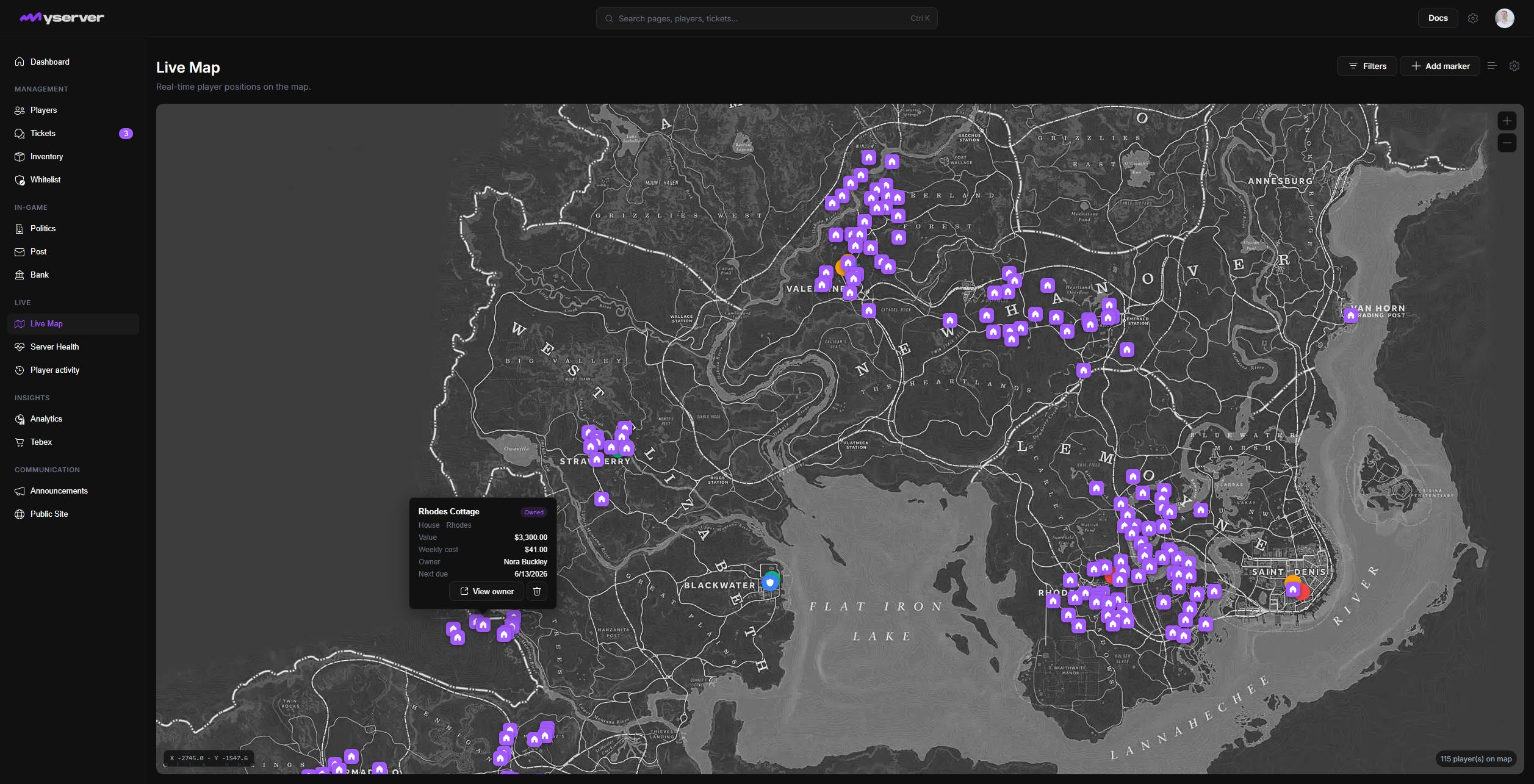
The property popup shows:
- The property name, ownership status, type, and zone.
- Its configured value and weekly cost.
- The current owner and next payment date when the property is owned.
- View owner, which opens the owner's player profile when the property is linked to a Platform player.
- The delete control for staff with full in-game data permission.
Deleting a property sends a destructive command to the game resource and also removes its storage contents. Select the delete control to review the confirmation, but only confirm after checking the property name and owner. Cancel closes the dialog without changing the property.
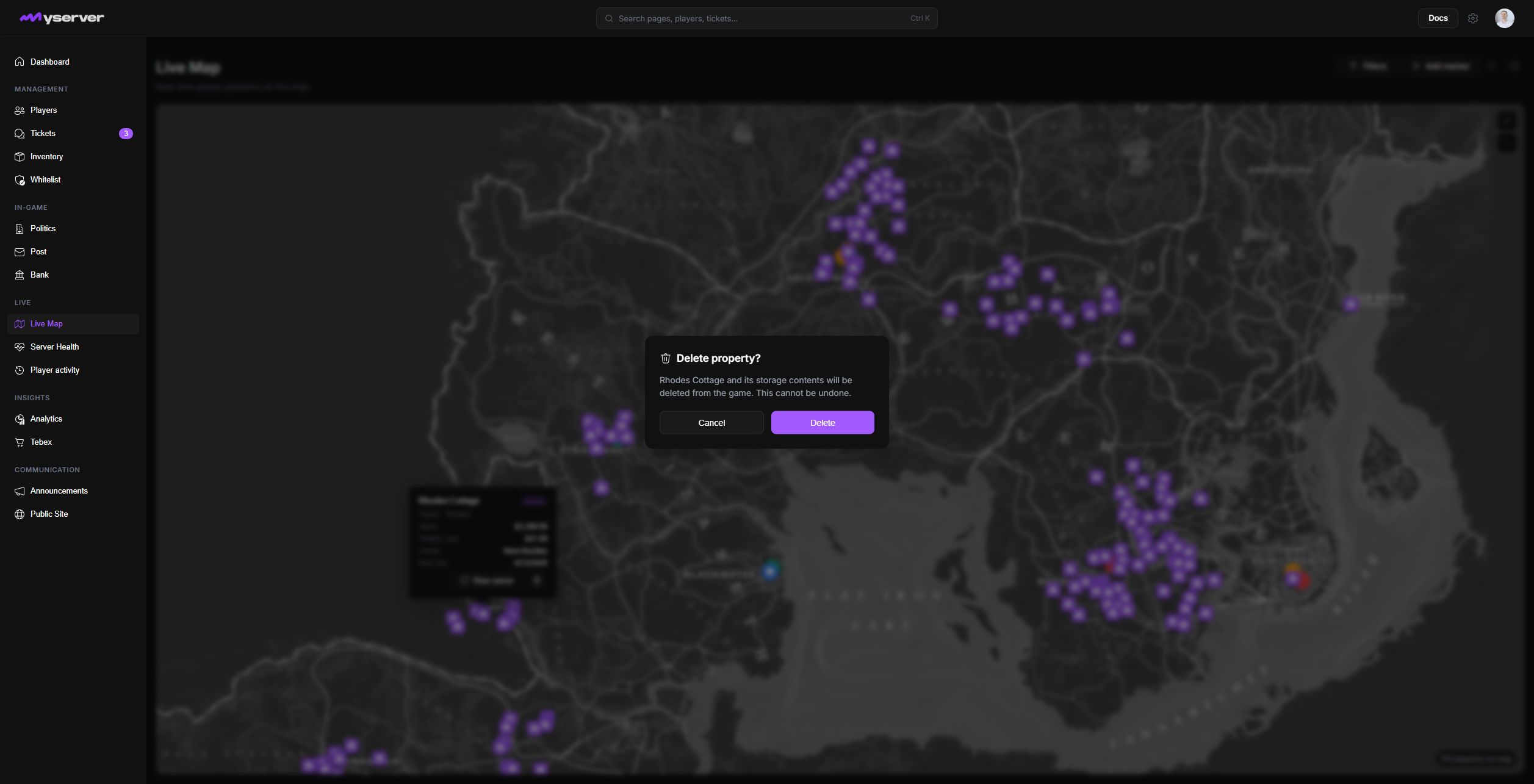
Property locations come from the connected real-estate resource. Platform does not invent missing coordinates. If markers appear in an impossible pattern, verify the source data or demo seed rather than manually offsetting production properties.
Create a staff POI
Select Add marker. The button changes to Click map to add and the cursor enters placement mode. Select the exact location on the map to open the New marker sheet with its coordinates already filled.
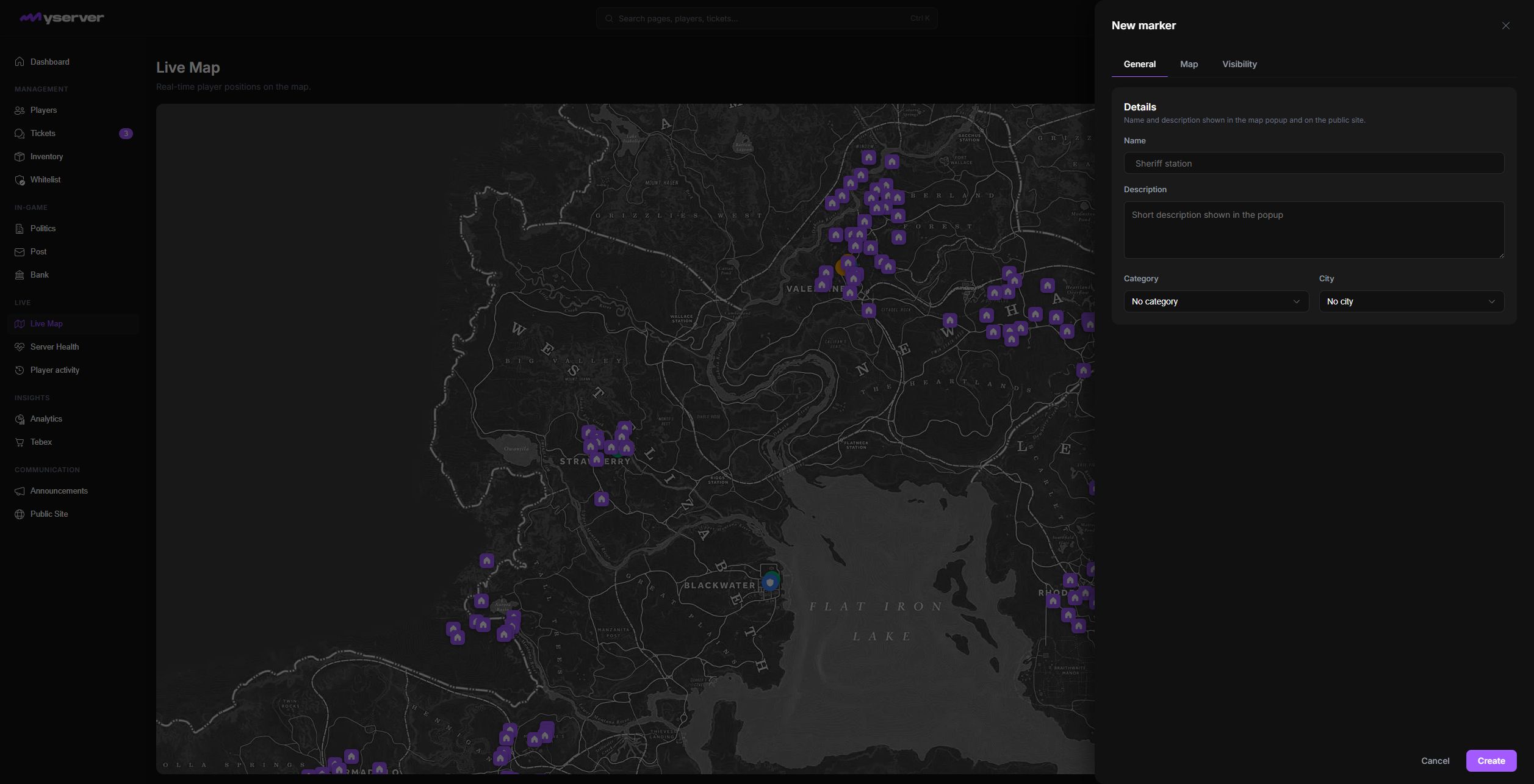
General.
Use General to enter the marker name and the short description shown in its popup. Assigning a category gives the marker its shared color and default icon; assigning a city makes it easier to group and filter in the marker list.
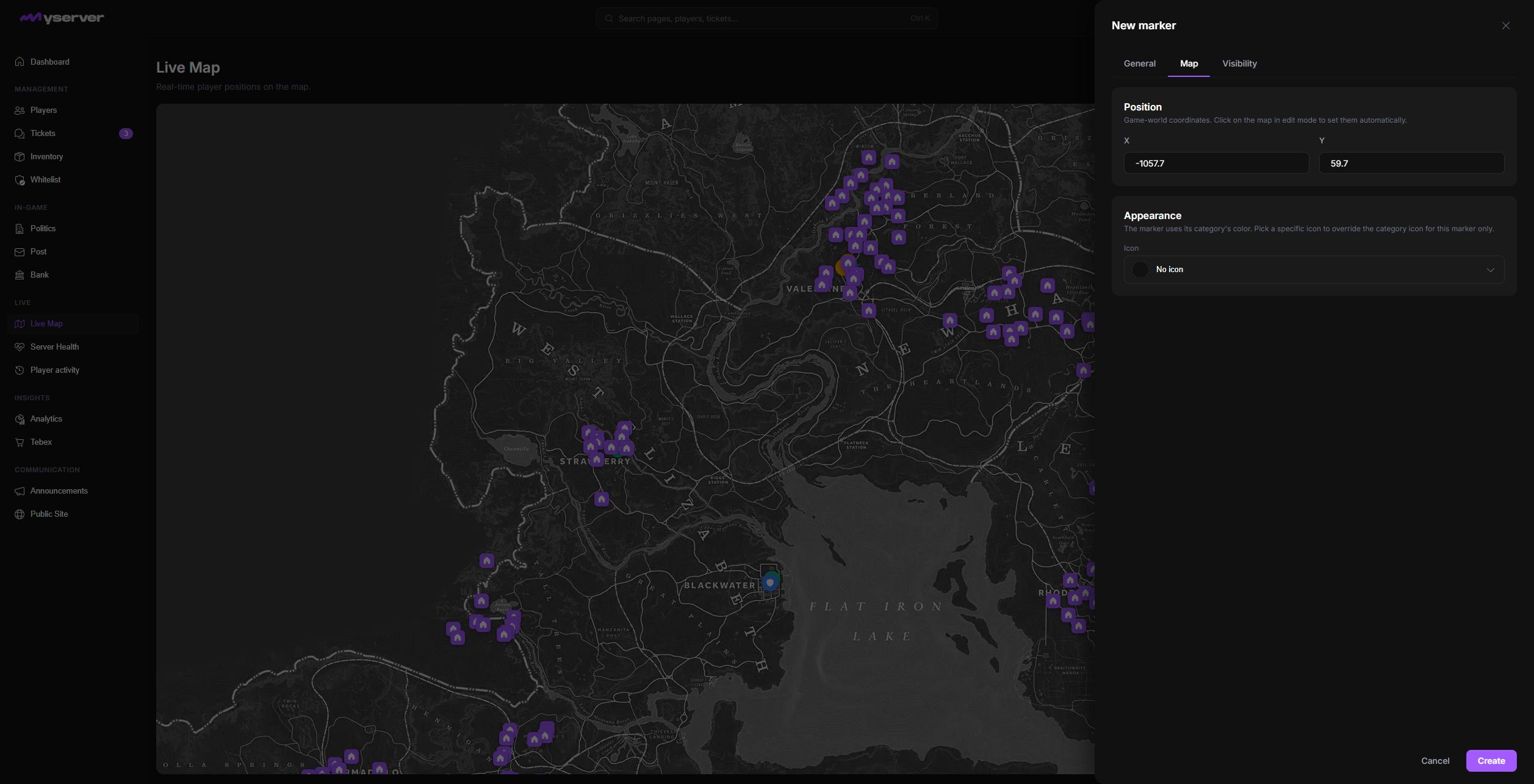
Map.
Open Map to review or correct the X and Y game-world coordinates. A marker normally inherits the category icon; choose a marker-specific icon only when it needs to differ from the rest of its category.
Visibility.
Open Visibility to choose where the marker is exposed. Visible on public site publishes it to compatible public map blocks; when disabled, only staff see it on the dashboard map. Show linked players publicly exposes players attached to that marker and should only be enabled when that relationship is intended for visitors.
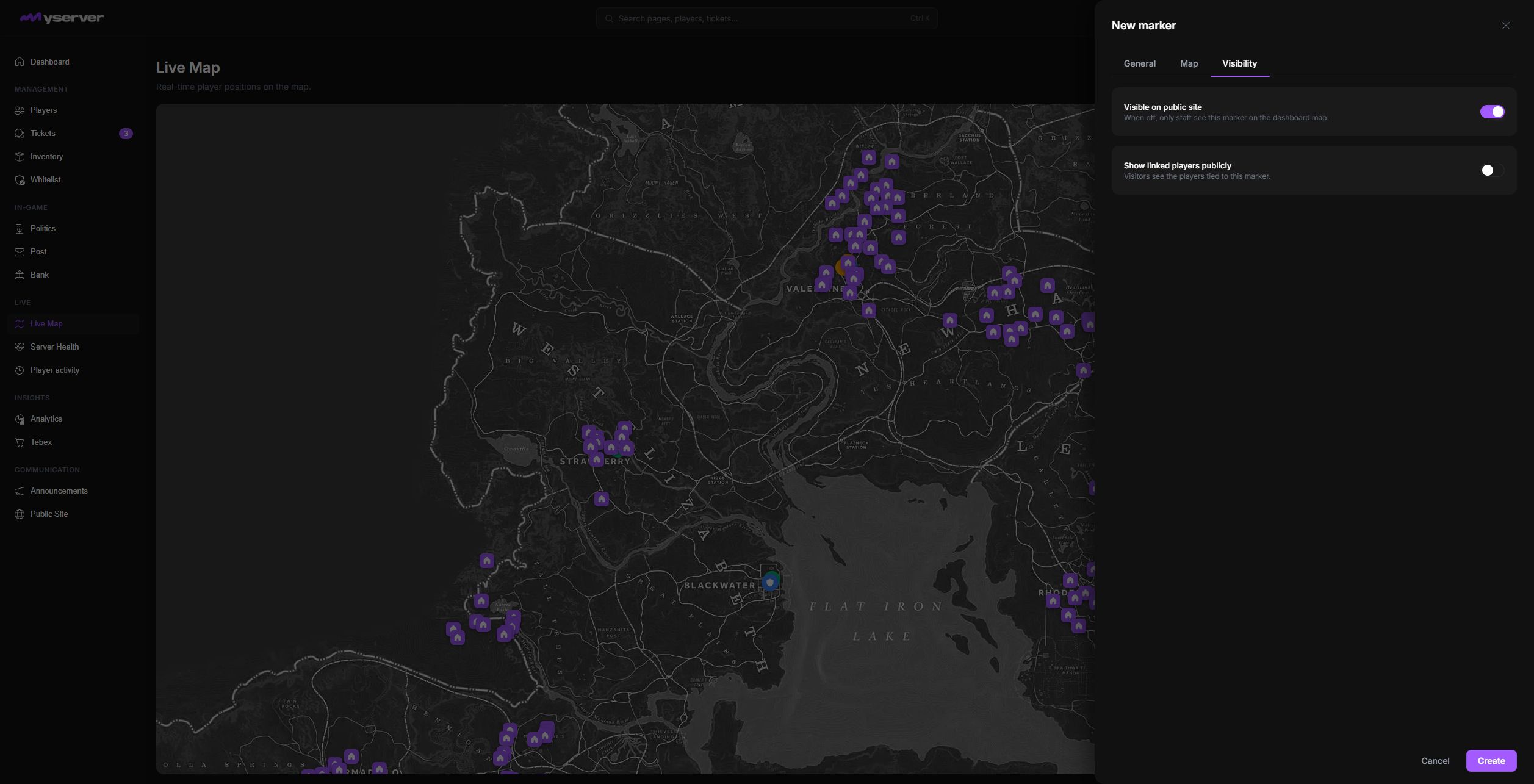
Select Create only after checking all three tabs. Select Cancel or close the sheet to discard the unsaved marker.
Find, edit, or remove a POI
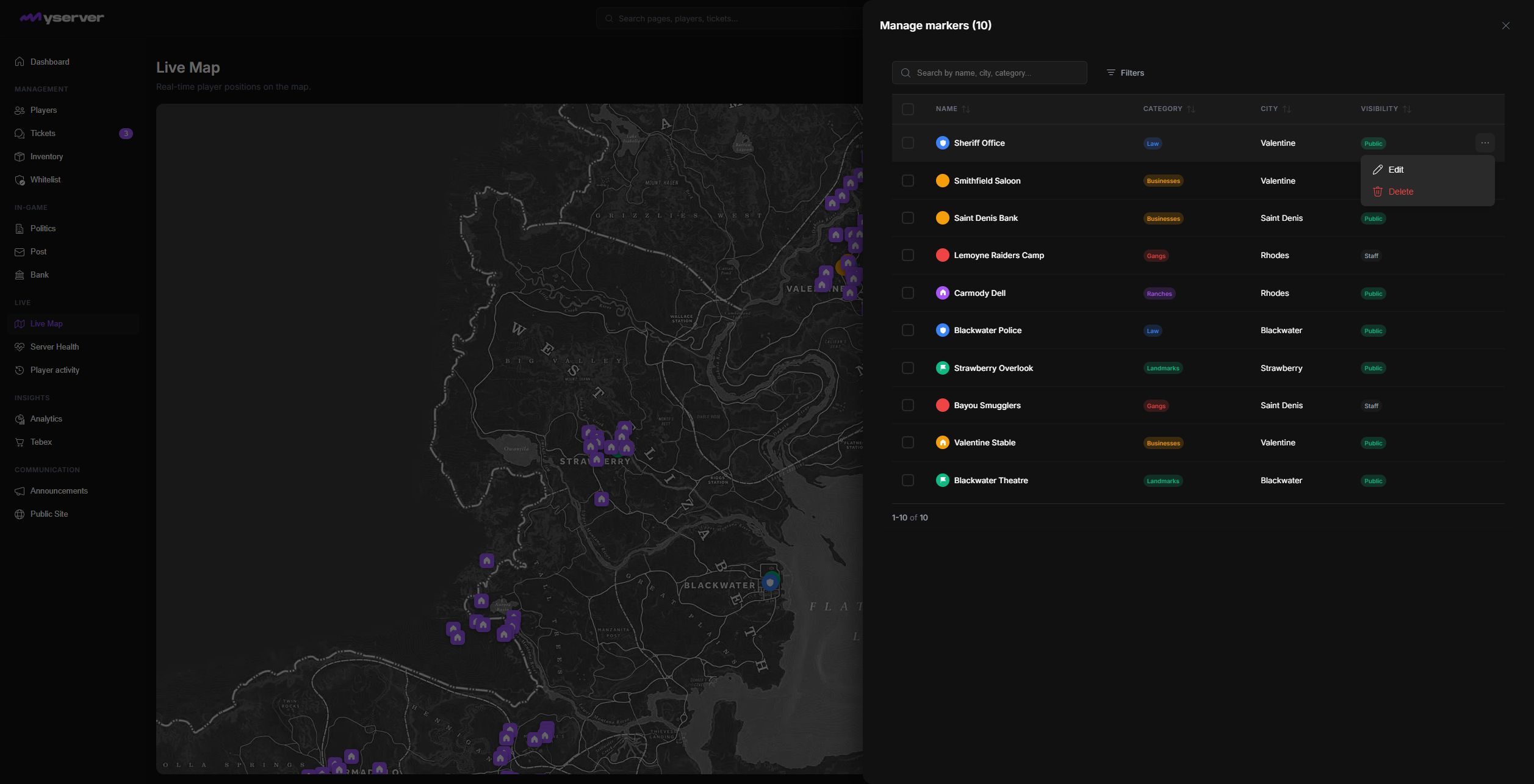
Select Marker list in the toolbar. Search by marker name, city, or category, or open Filters to narrow the table. The Visibility column distinguishes Public markers from Staff markers.
Open the row menu at the far right:
- Edit reopens the same General, Map, and Visibility tabs for that marker.
- Delete starts the deletion confirmation. It does not remove the marker until the destructive confirmation is accepted.
Configure cities, categories, and map style
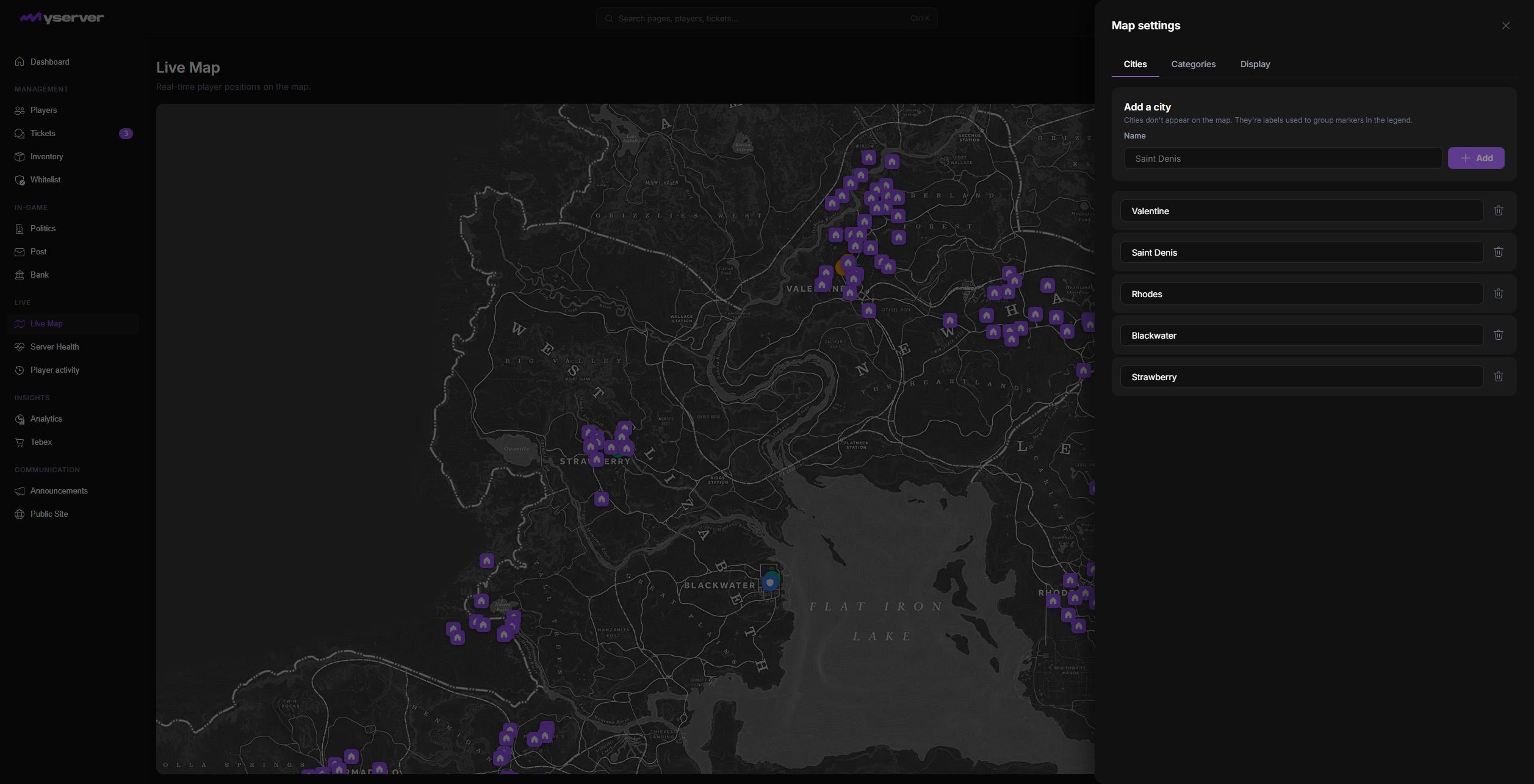
Select Map settings in the toolbar. These settings organize every staff POI; they do not change synchronized property data.
Cities.
Cities are labels used to group markers in the legend and management list. Add a city with a clear, stable name. Editing a city updates the shared label used by assigned markers; deleting one can remove that grouping option.
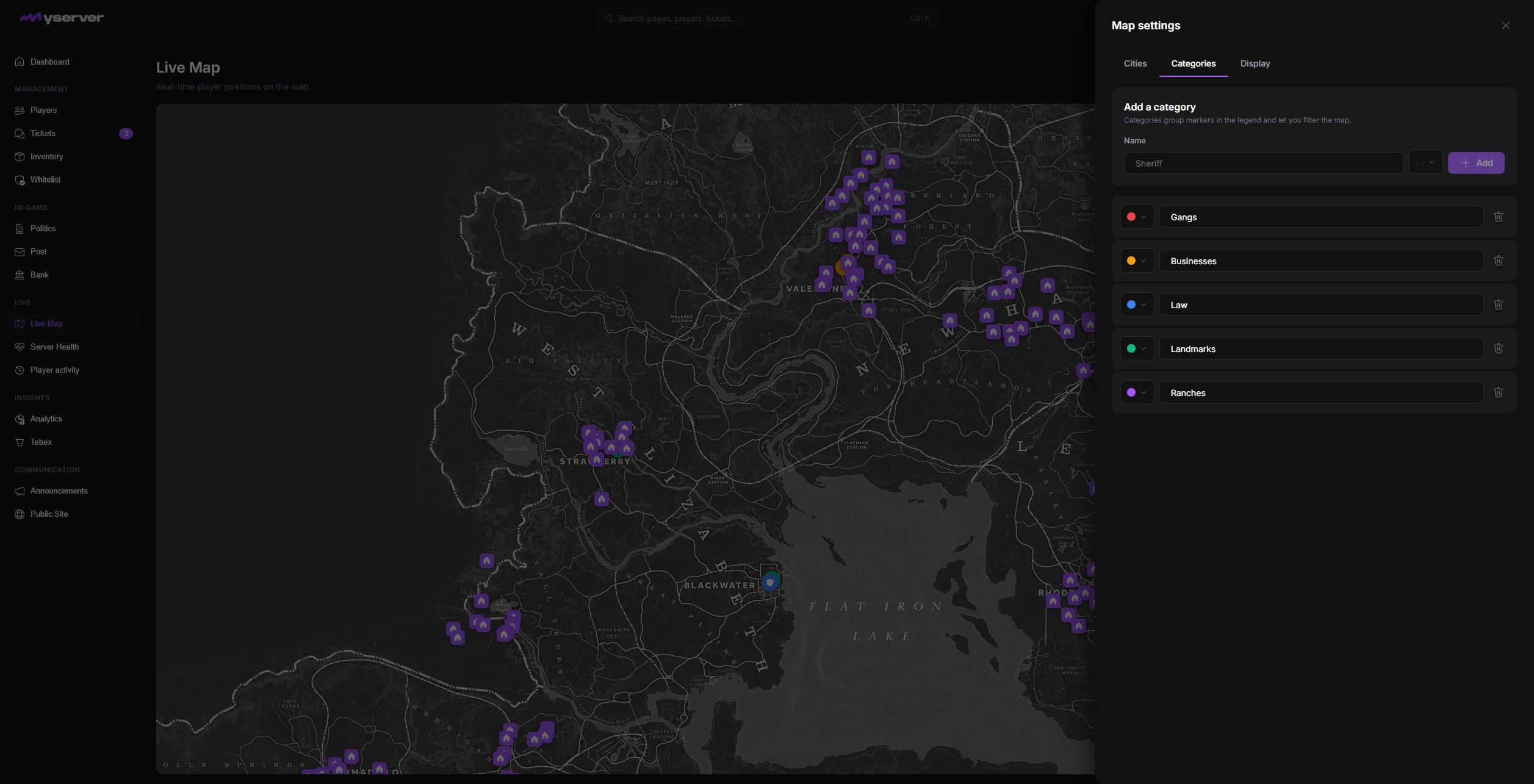
Categories.
Categories group markers, provide their shared color and icon, and become map filters. Use one category per operational purpose instead of creating near-duplicates.
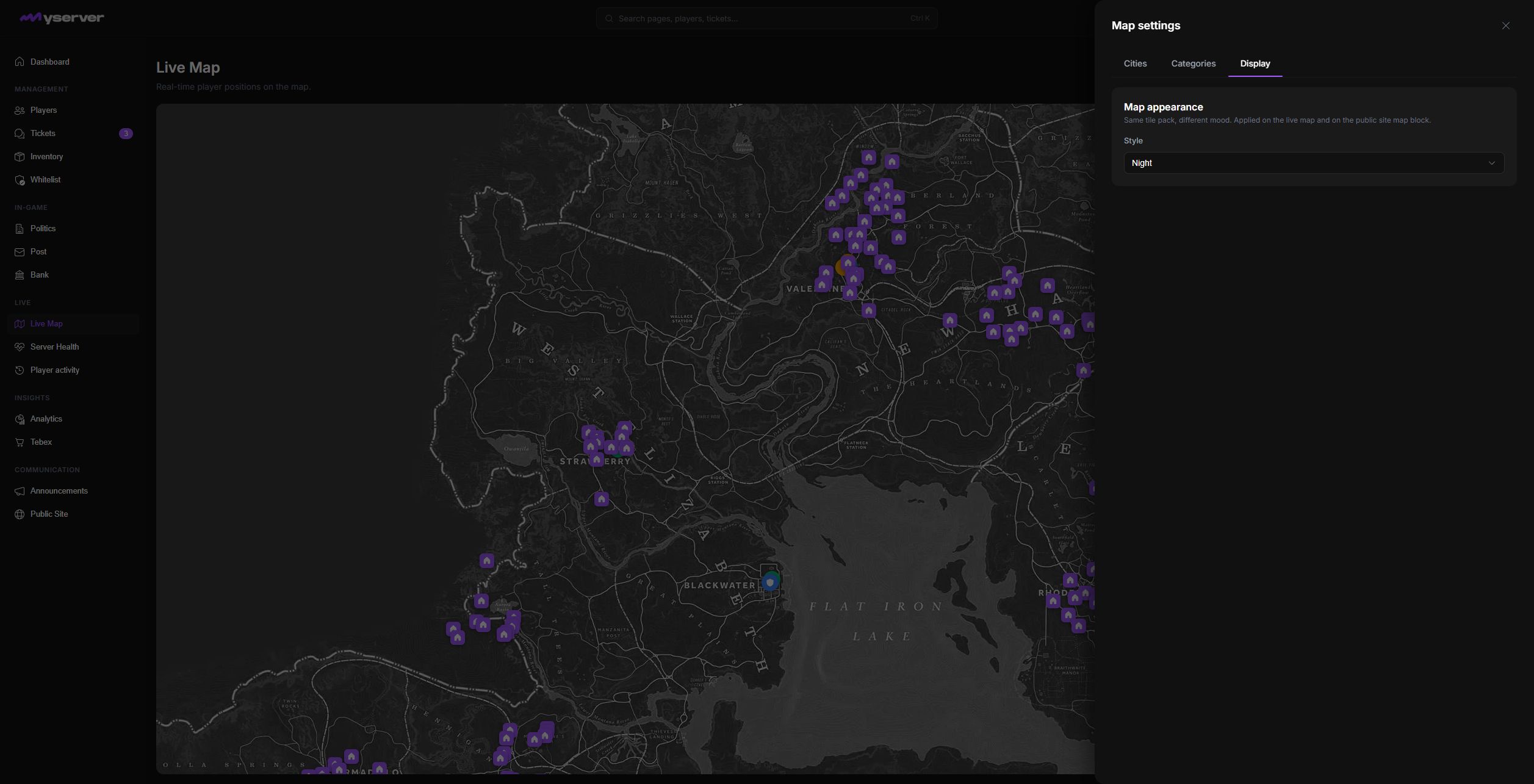
Display.
Display controls the map tile style used by the staff Live Map and compatible public map blocks. Choose the style for readability; it does not alter any player, property, or POI coordinates.
Position freshness depends on PositionSyncInterval, player connectivity, the resource connection, and server load. A marker can lag behind the game when the latest position update failed or has not arrived yet.
Use coordinates, timestamps, player trails, disconnect history, and Player Activity together. The map is operational context, not proof on its own. For a moderation decision, compare the map record with the player profile, activity feed, server logs, and any ticket evidence.
Last updated: September 11, 2026