RedM / FiveM documentation
Murphy’s Platform
Daily operations
Player profiles and actions
Review identity, history, characters, in-game data, and moderation actions.
A player profile is the full operational record for one connected identity. The first MyServer view below has Show more actions expanded so the complete action surface is visible. Confirm the identity panel before taking any moderation or in-game action.
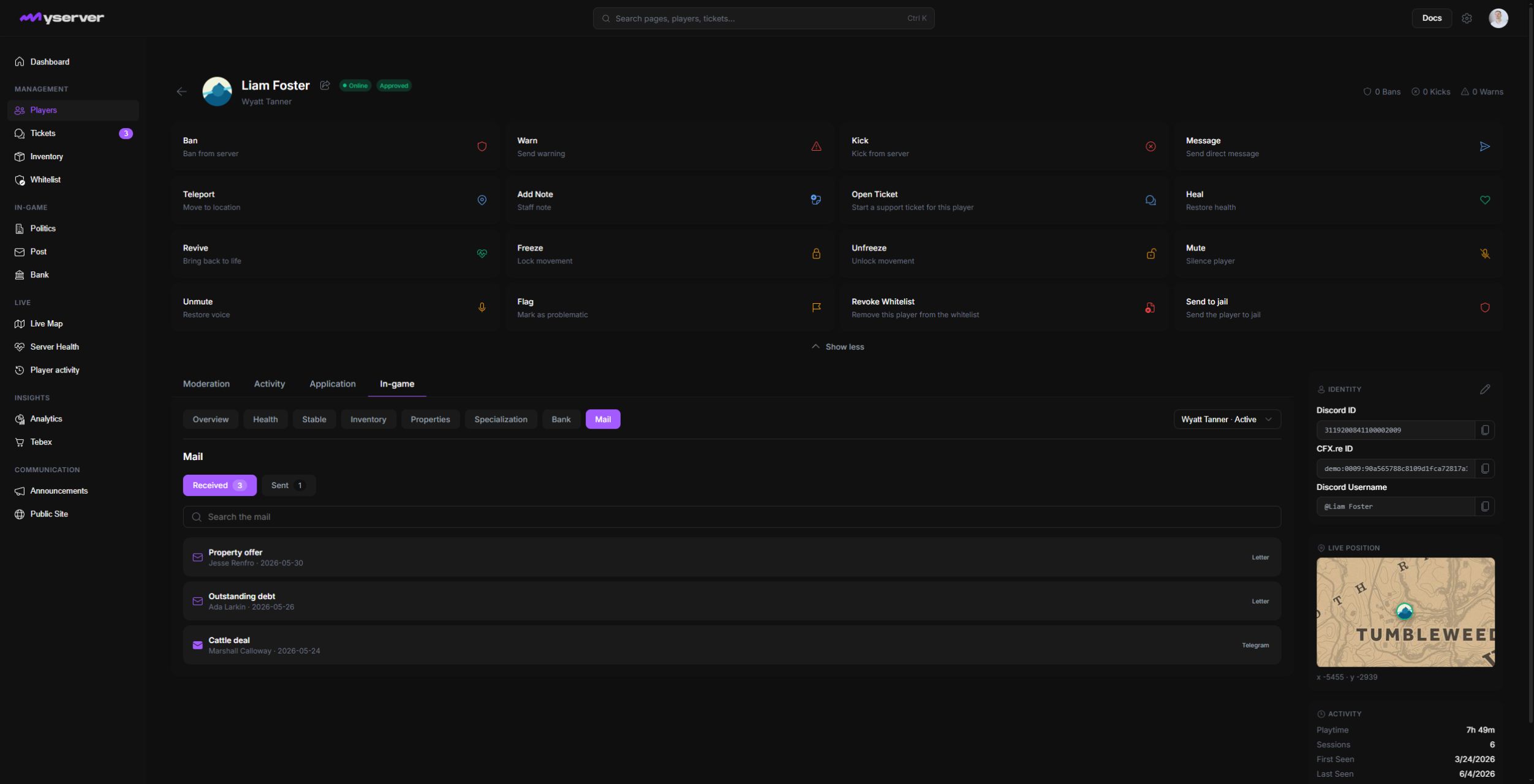
Read player context before acting
The header keeps the player name, current character, connection state, whitelist status, and moderation totals visible while you move between tabs. Use the share control to copy a direct link to the same profile.
The primary action row can include Ban, Warn, Kick, and Message. Show more actions opens the additional actions configured for the server, such as heal, revive, freeze, teleport, whitelist controls, or custom commands. What you can see depends on your staff permissions, the player's state, and the connected resources.
- Ban blocks the player according to the selected reason and duration.
- Warn records a formal warning in the audit history.
- Kick disconnects an online player without creating a persistent ban.
- Message sends an in-game message when the player is online and the command is supported.
Moderation
Use Moderation to understand what staff have already done before applying a new sanction.
Actions.
Actions lists the moderation history recorded for this player, including the action type, status, reason, staff member, and date when available. An empty list means no compatible action has been recorded yet.
Notes.
Notes contains internal staff context that should remain attached to the player record. Use it for concise operational details that another moderator may need later, not as a substitute for the reason attached to a formal action.
Activity
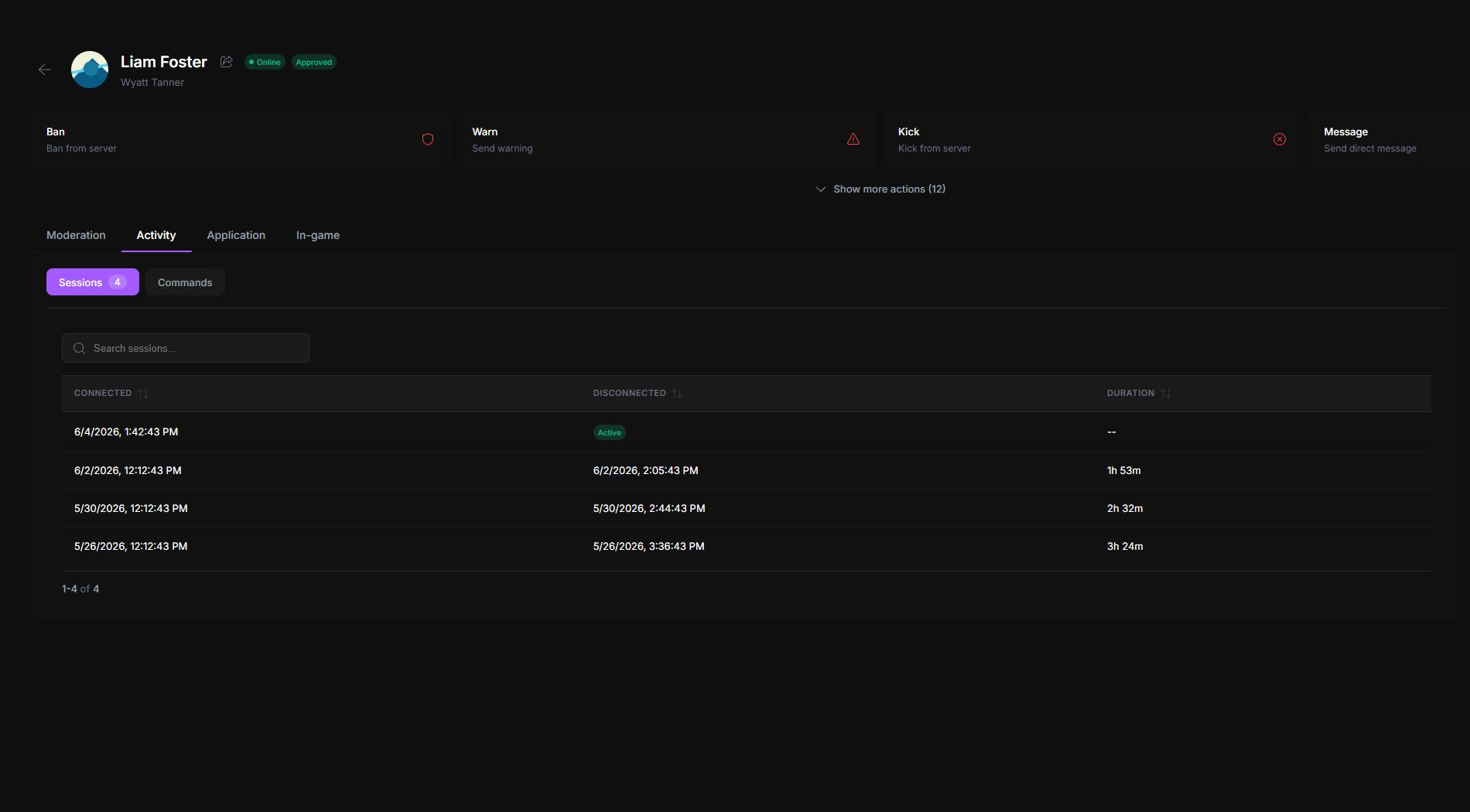
Activity separates connection history from commands sent through Platform.
Sessions.
Sessions shows each connection and disconnection time with the session duration. The active session is identified separately when the player is online. Search the list when investigating a specific date or reconnect pattern.
Commands.
Commands shows the delivery history for commands sent from the profile, including the command type, status, author, and sent time. Use it to confirm whether an action was dispatched before sending it again.
Application
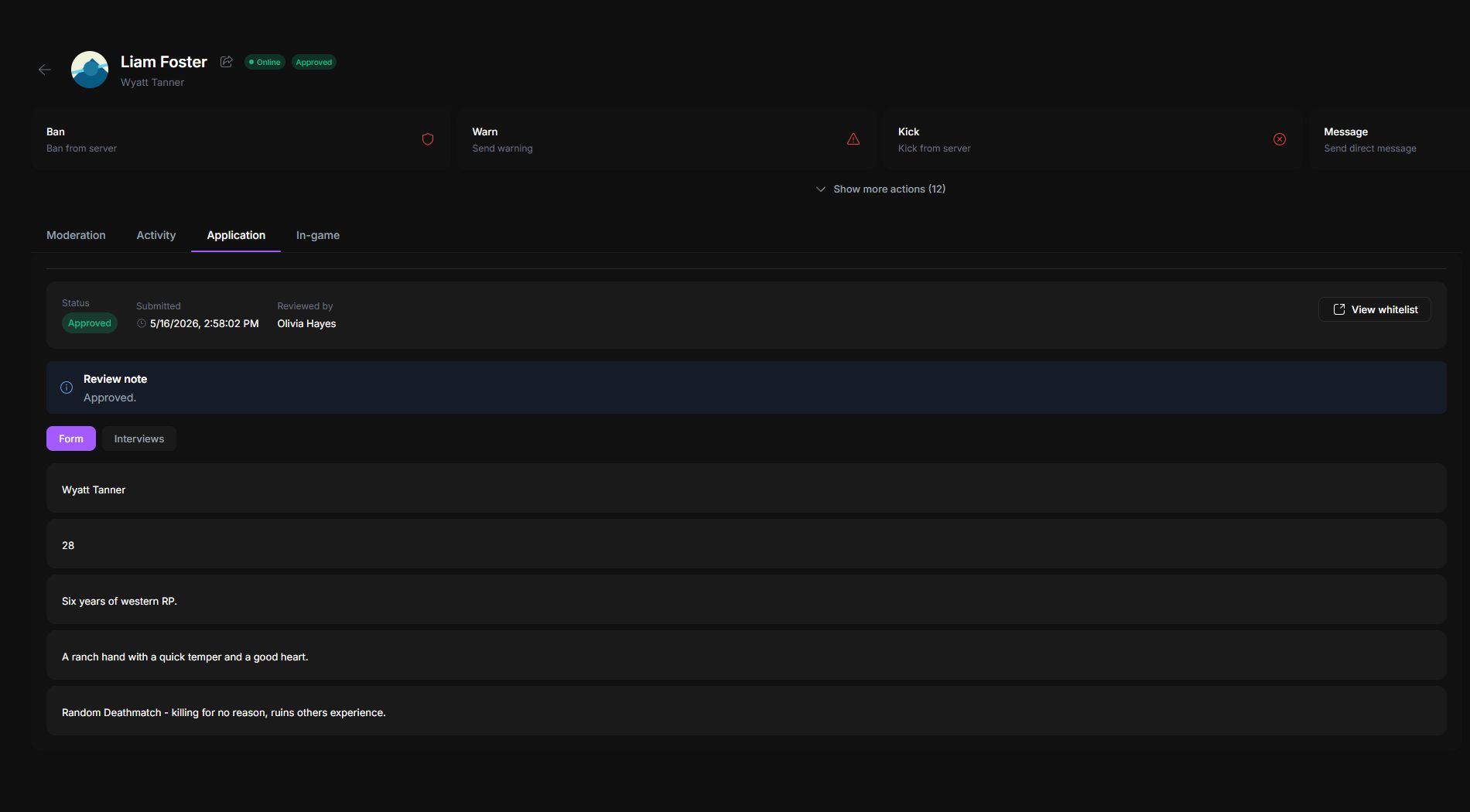
Application brings the player's whitelist record into the profile. The summary shows the current status, submission date, reviewer, review note, and a link to the complete whitelist entry.
Form.
Form displays the answers submitted in the whitelist application. Read the full answer set before changing the review status so the decision remains tied to the submitted evidence.
Interviews.
Interviews lists registrations and attendance for connected whitelist interview sessions. If no interview has been scheduled or attended, the tab remains empty.
In-game
In-game exposes character data synchronized by compatible server resources. Select the correct character from the character menu before reading or changing any record. A player can have several characters, and the active character is labelled in the selector.
Overview
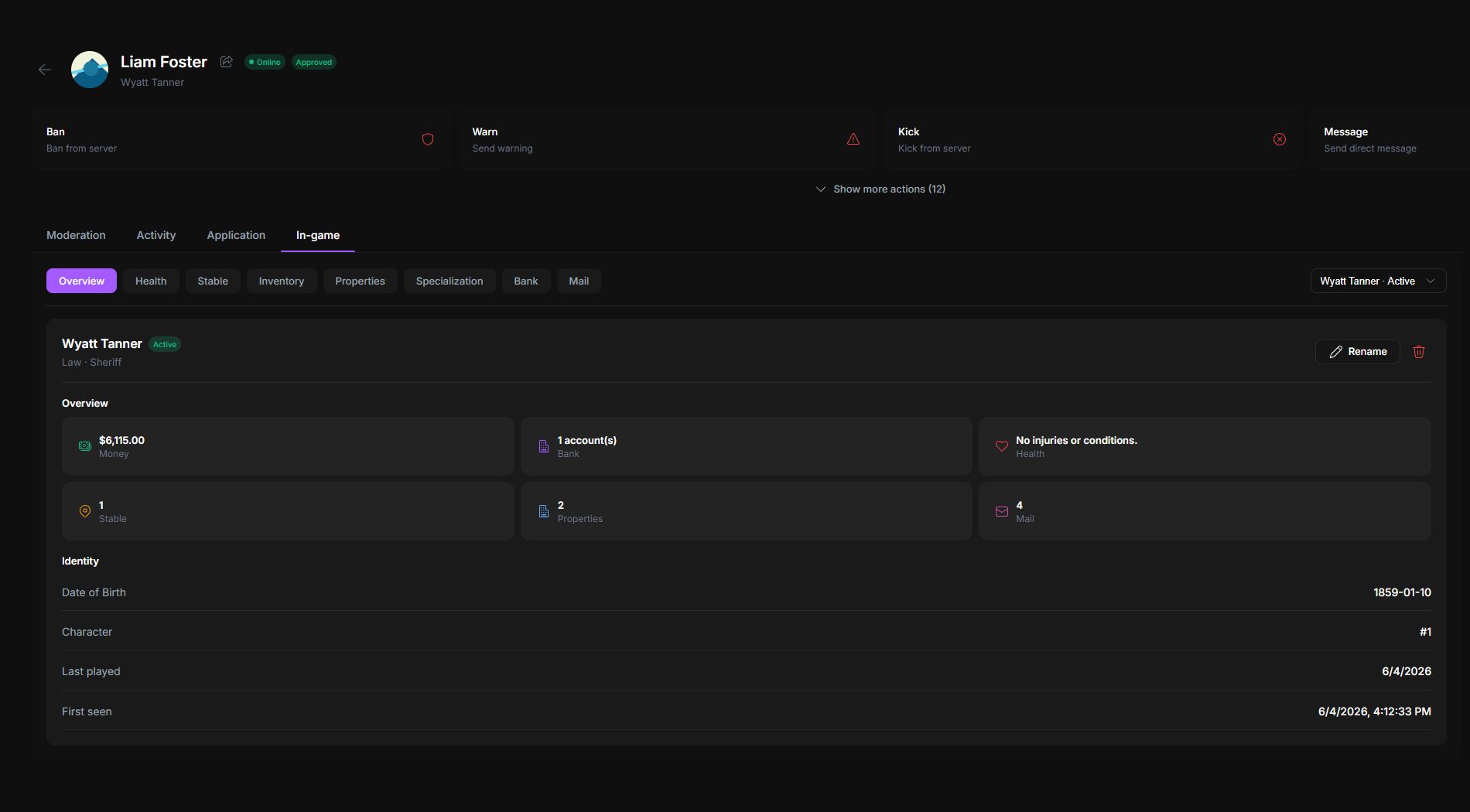
Overview summarizes the selected character: job, cash, bank accounts, health, stable, properties, mail, date of birth, character identifier, and first or last play dates. Character rename and delete actions only appear when supported and permitted.
Health
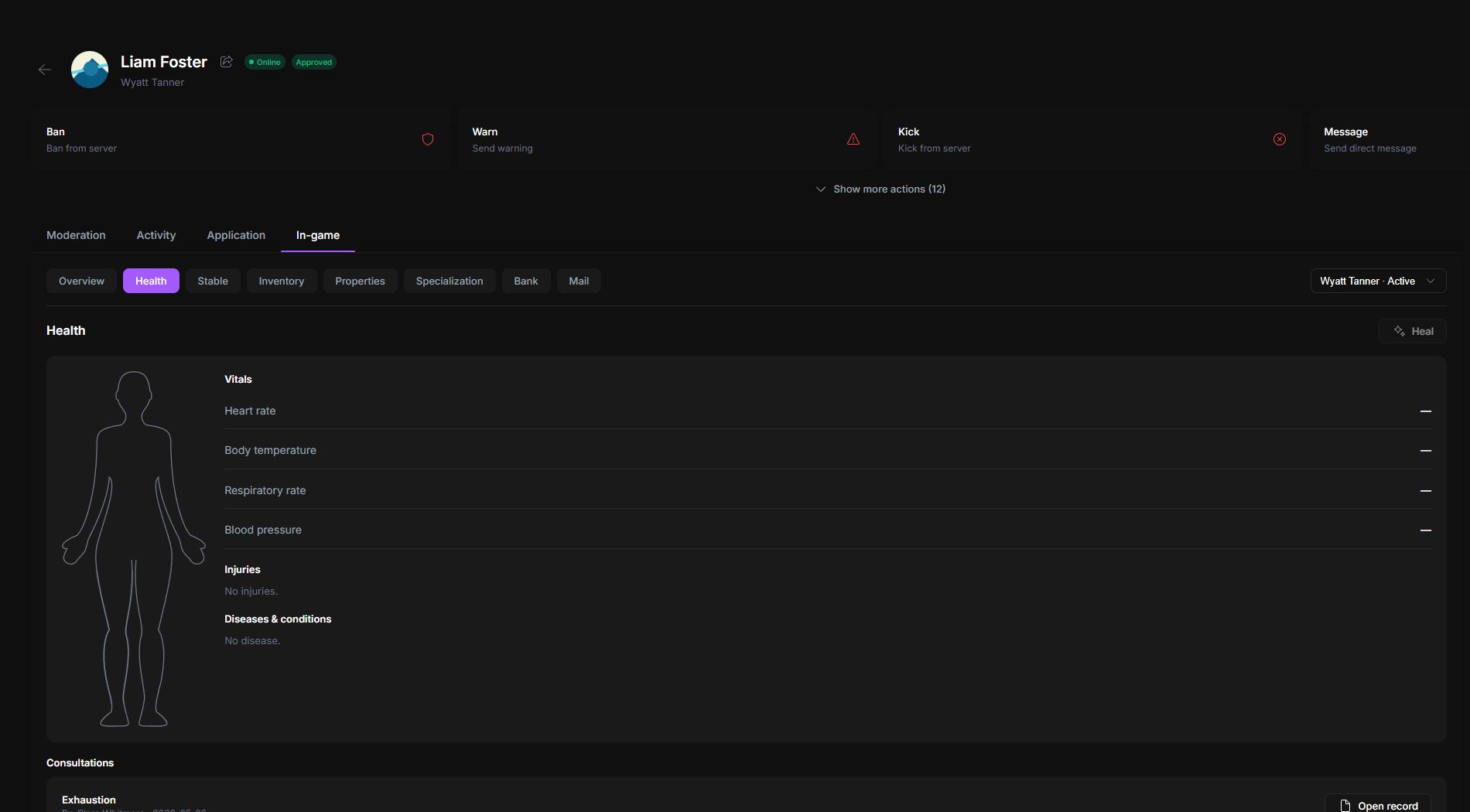
Health is split into two working areas. The upper record combines the body diagram with the latest synchronized vitals, injuries, diseases, and other conditions. The lower Consultations list keeps every medical visit attached to the character.
Read the upper record from left to right:
- The body diagram highlights affected body parts when the doctor resource reports an injury.
- Vitals shows heart rate, body temperature, respiratory rate, and blood pressure. A dash means that the value was not included in the latest sync; it does not mean that the value is zero.
- Injuries names every affected body part and its current condition.
- Diseases & conditions lists illnesses or longer-running medical states separately from physical injuries.
The Heal button is enabled only when the character has at least one reported injury and your role can manage character data. Select it to open the injury selector, choose the exact body parts to treat, then confirm. Confirmation sends a live command to the game server. In the MyServer example above the button is disabled because Wyatt Tanner has no current injury.
Open a consultation record
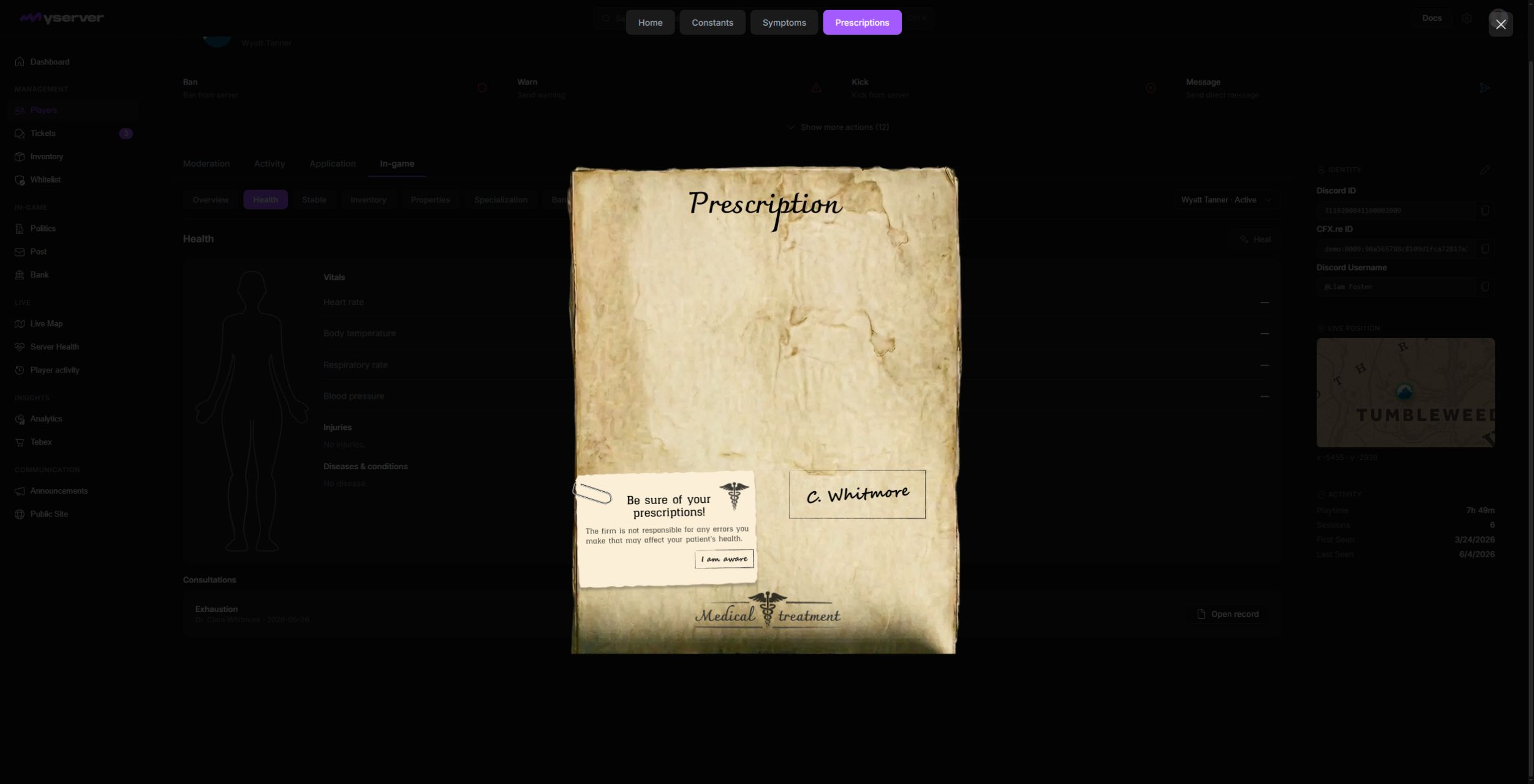
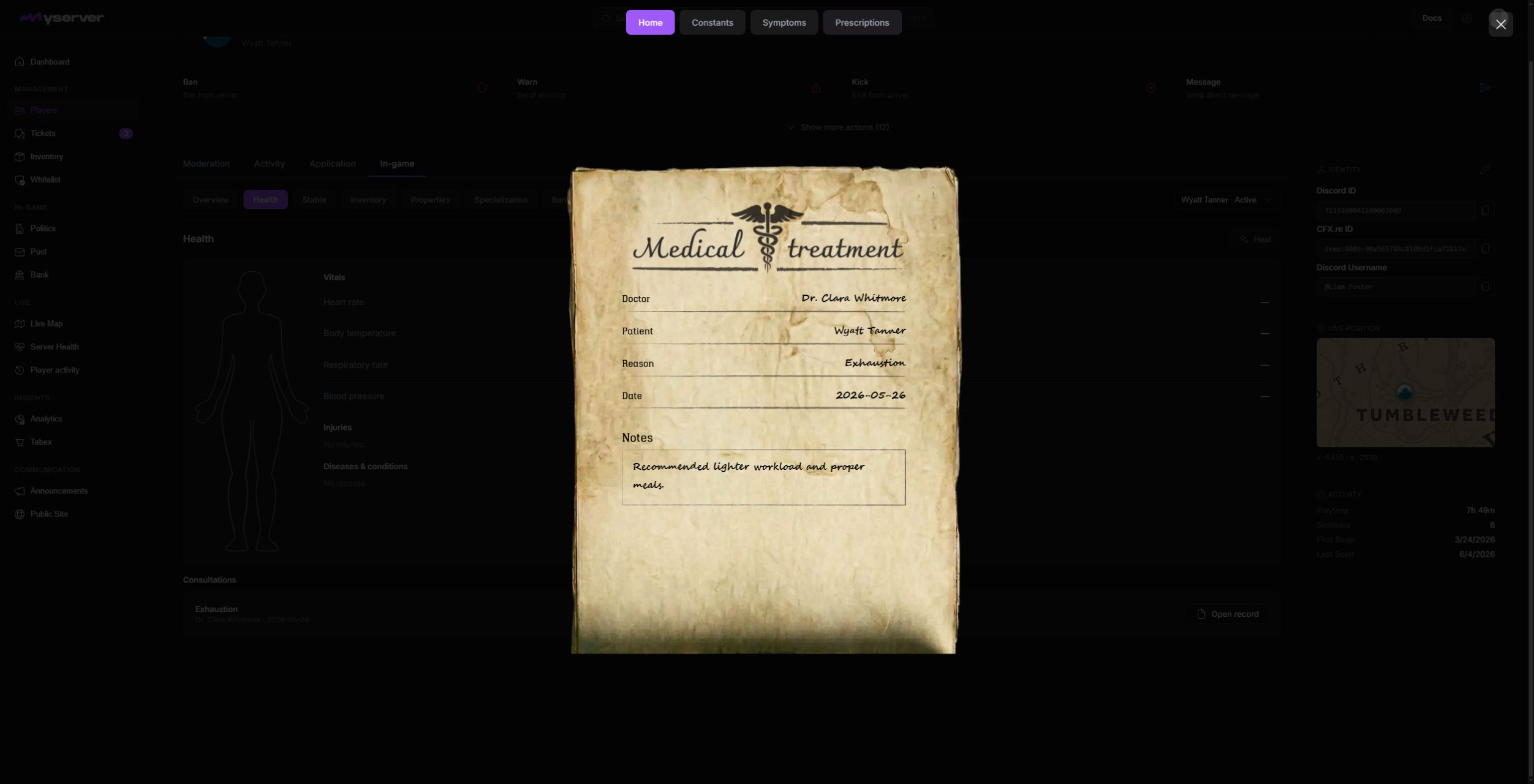
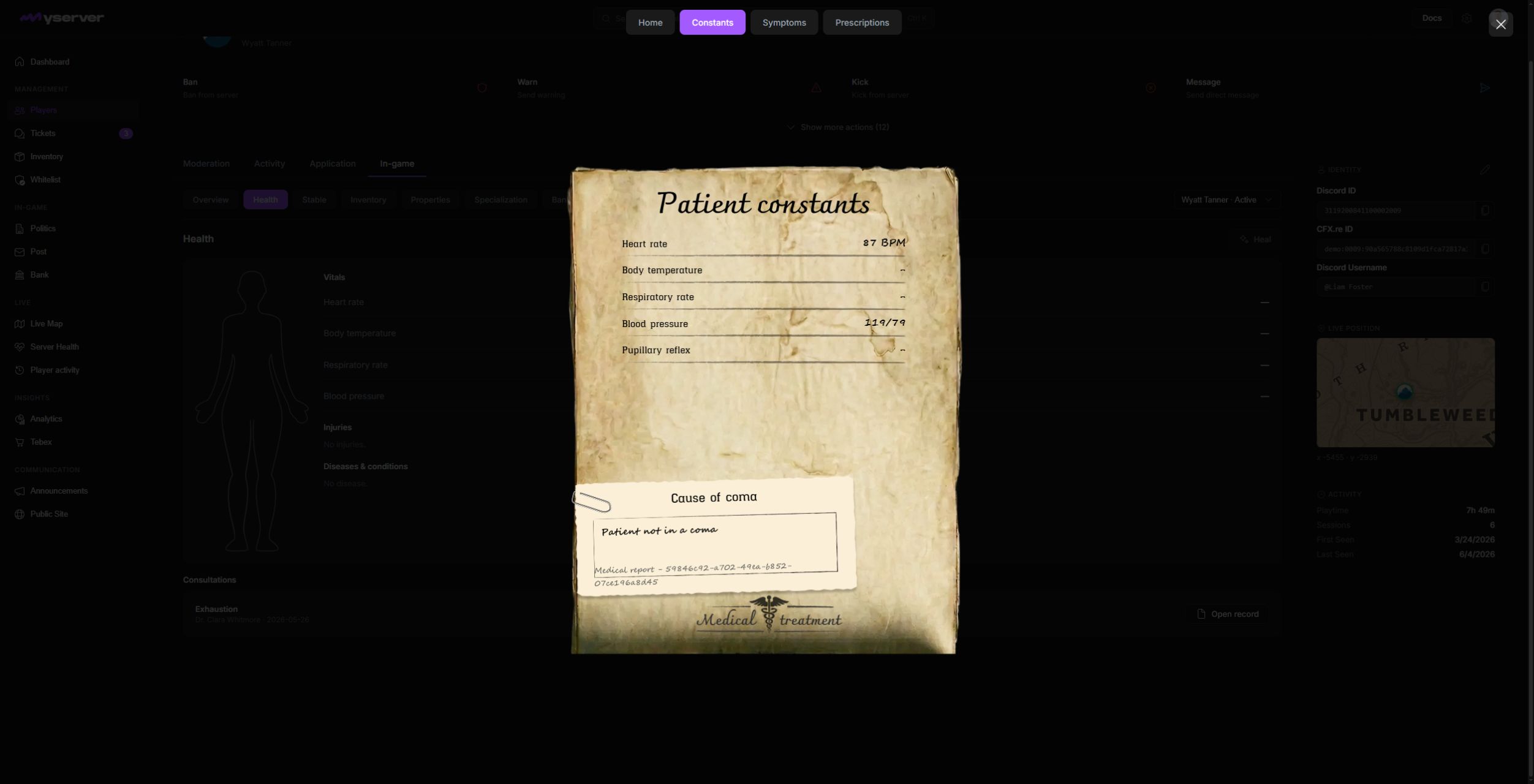
Select Open record beside a consultation to open the complete medical sheet. The sheet is read-only in Player Profile and has four tabs.
- Home identifies the doctor and patient, then shows the consultation reason, date, and medical notes.
- Constants contains measurements recorded during the visit. A missing measurement appears as a dash, while the coma field states whether a cause was recorded.
- Symptoms displays the body diagram saved with the consultation so staff can locate the reported symptoms.
- Prescriptions reproduces the prescription and its acknowledgement exactly as it was archived.
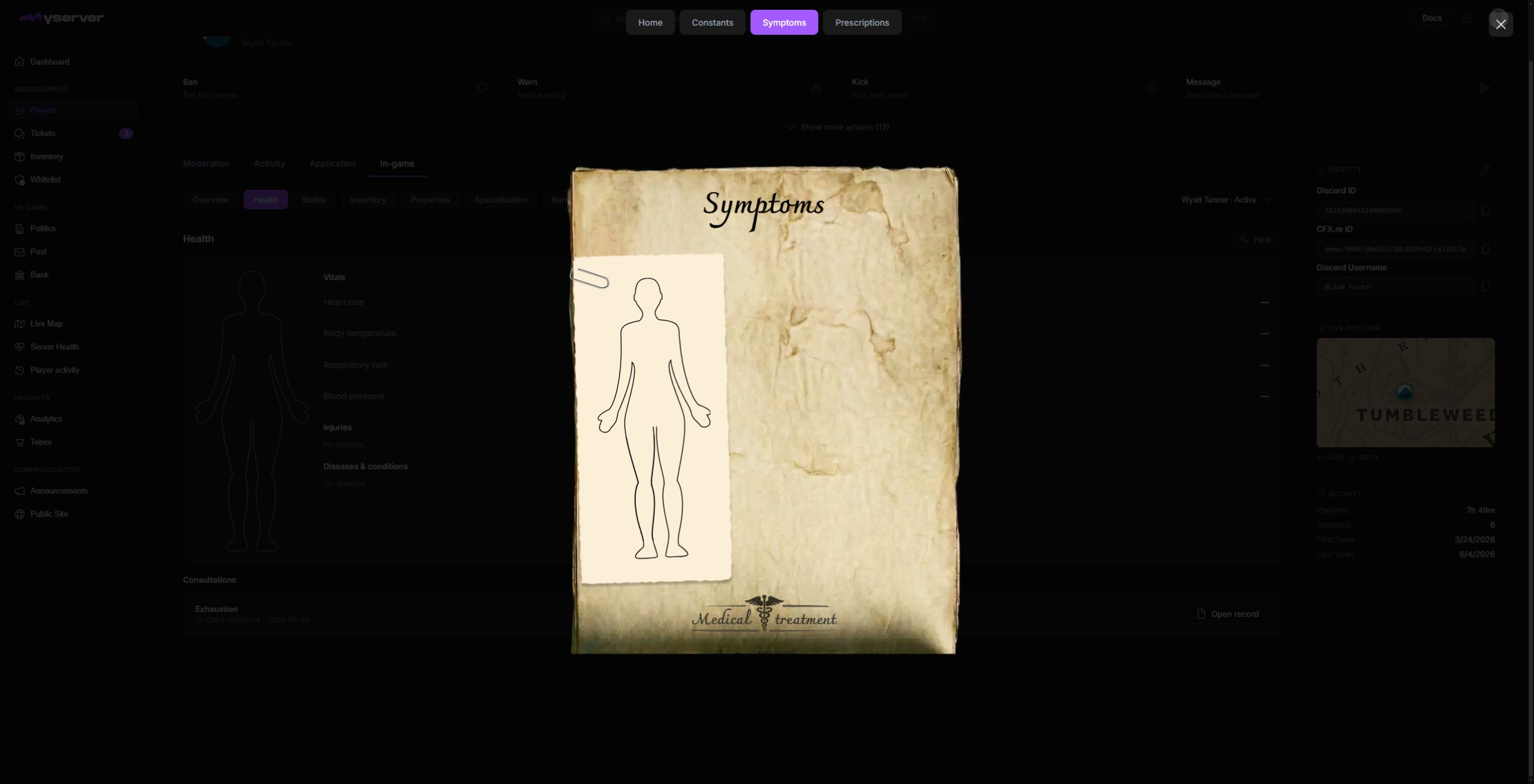
Use Close in the upper-right corner to return to Health without changing the consultation.
Stable
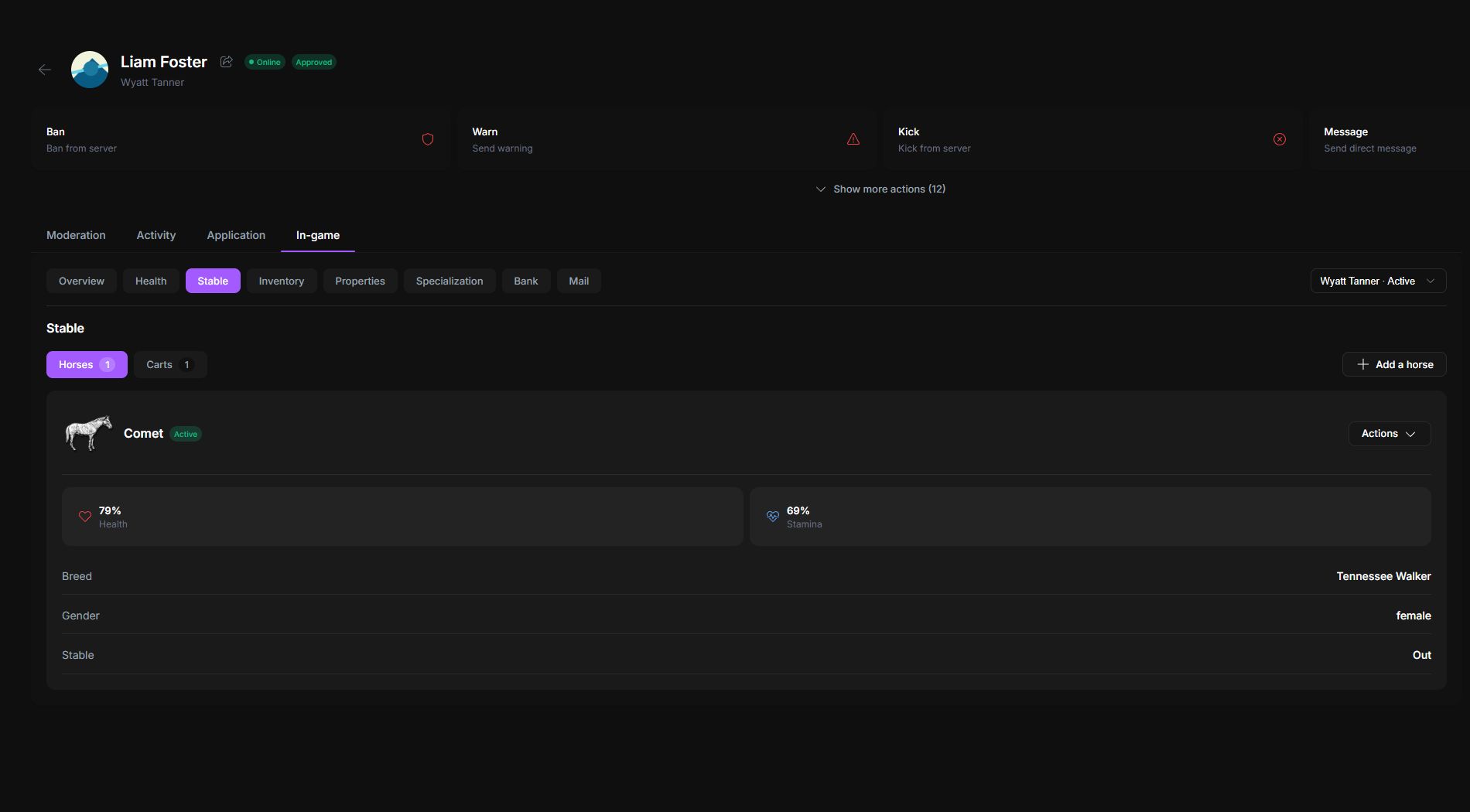
Stable separates Horses and Carts. A horse record can include its active state, health, stamina, breed, gender, and current stable state. Authorized staff can open the record actions or add a supported horse.
Inventory
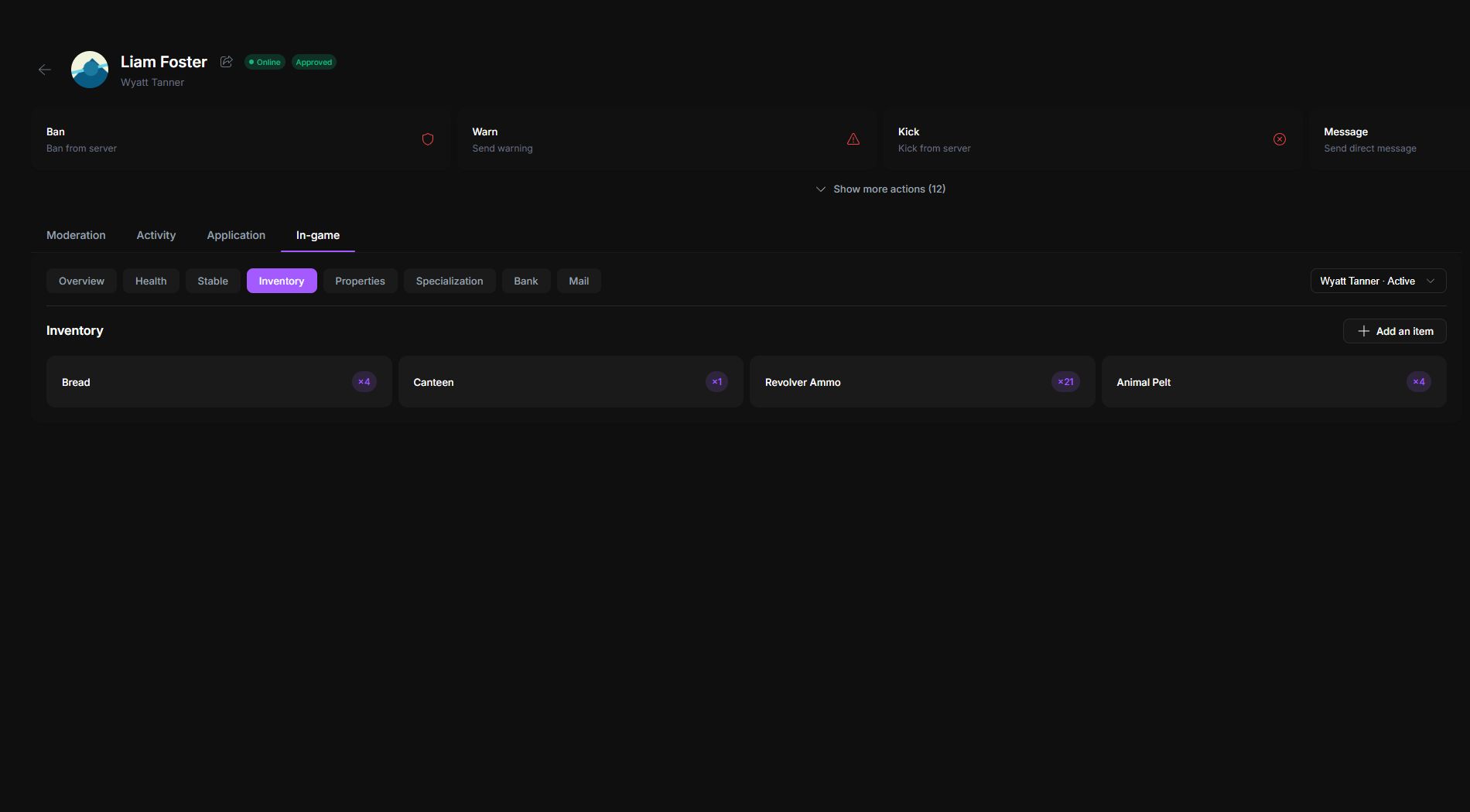
Inventory shows the items and quantities carried by the selected character. The add-item control is permission-gated and writes to live server data when the connected inventory resource supports it.
Properties
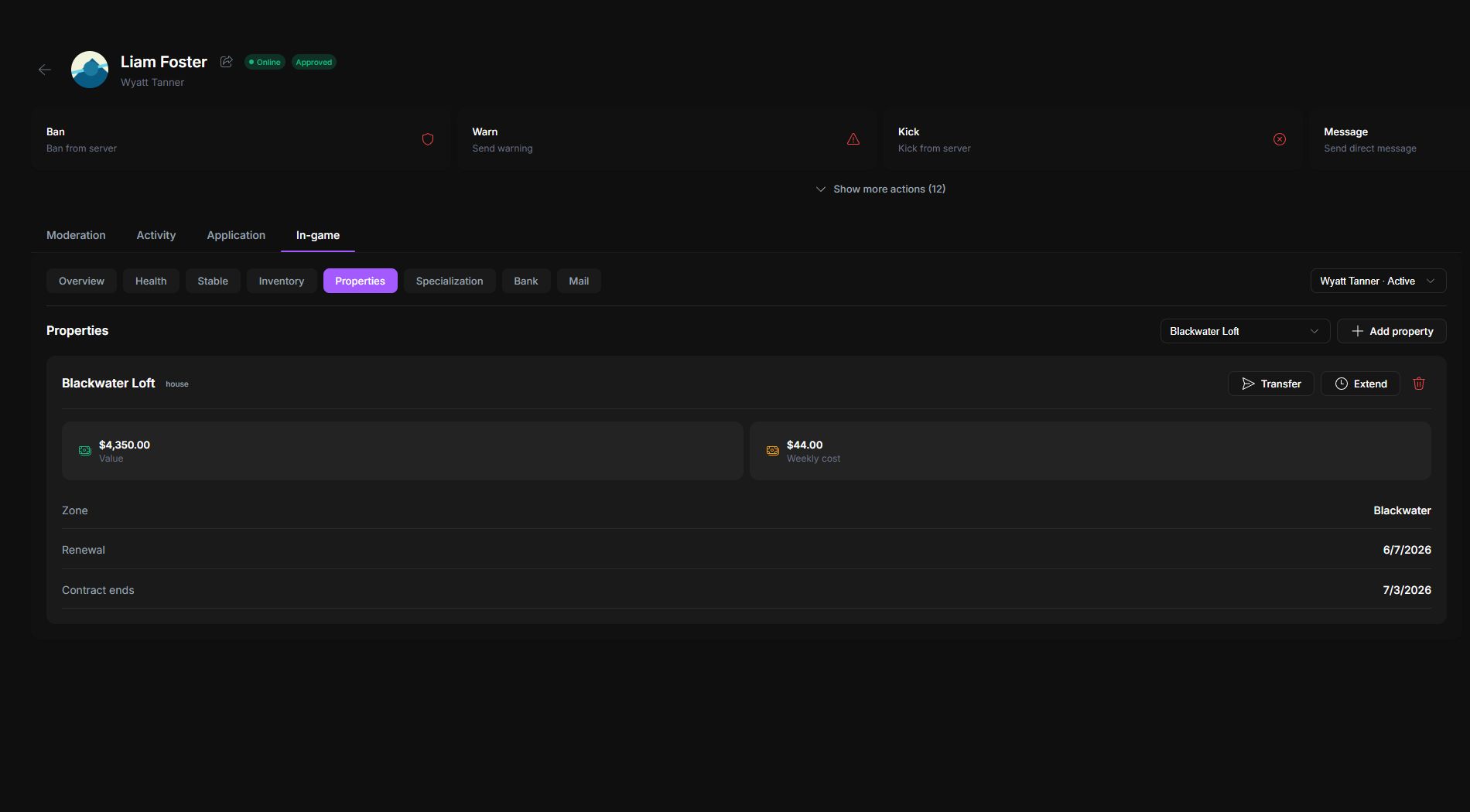
Properties lists the selected character's owned properties. Select a property to review its type, value, weekly cost, zone, renewal state, and contract end date. Transfer, extend, or delete controls appear only for authorized roles and supported property systems.
Specialization
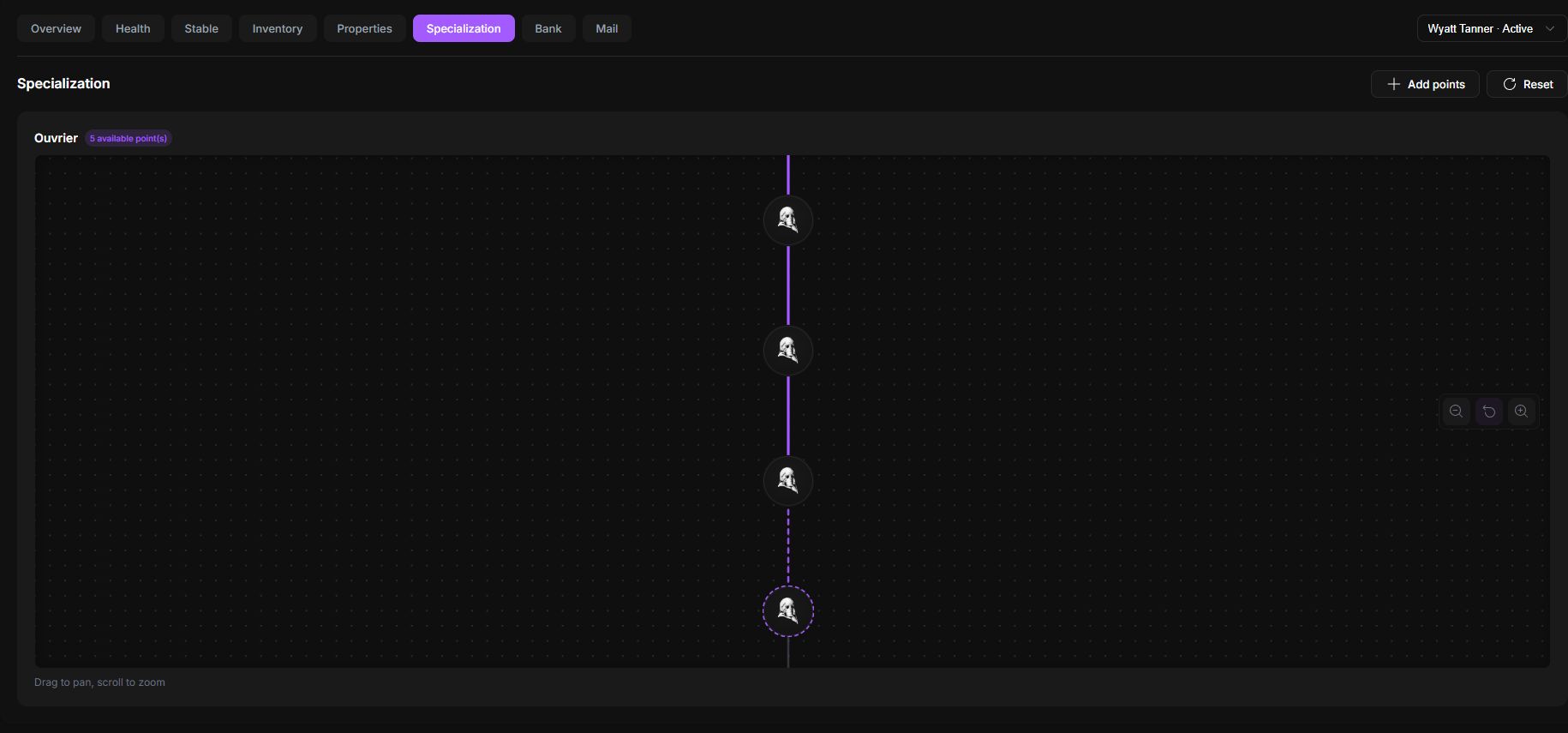
Specialization displays the skill tree synchronized by the connected craft resource. The heading above the canvas names the active specialization and the badge beside it shows the character's unspent points.
Use the canvas as an interactive map:
- Drag an empty part of the canvas to pan through a long or branching tree.
- Use the controls in the lower-right corner to zoom out, recenter the tree, or zoom in.
- Solid connections lead through unlocked progression. A dashed connection indicates the next available step, while muted nodes are still locked.
- Select any node to open its detail panel in the upper-right corner of the canvas.
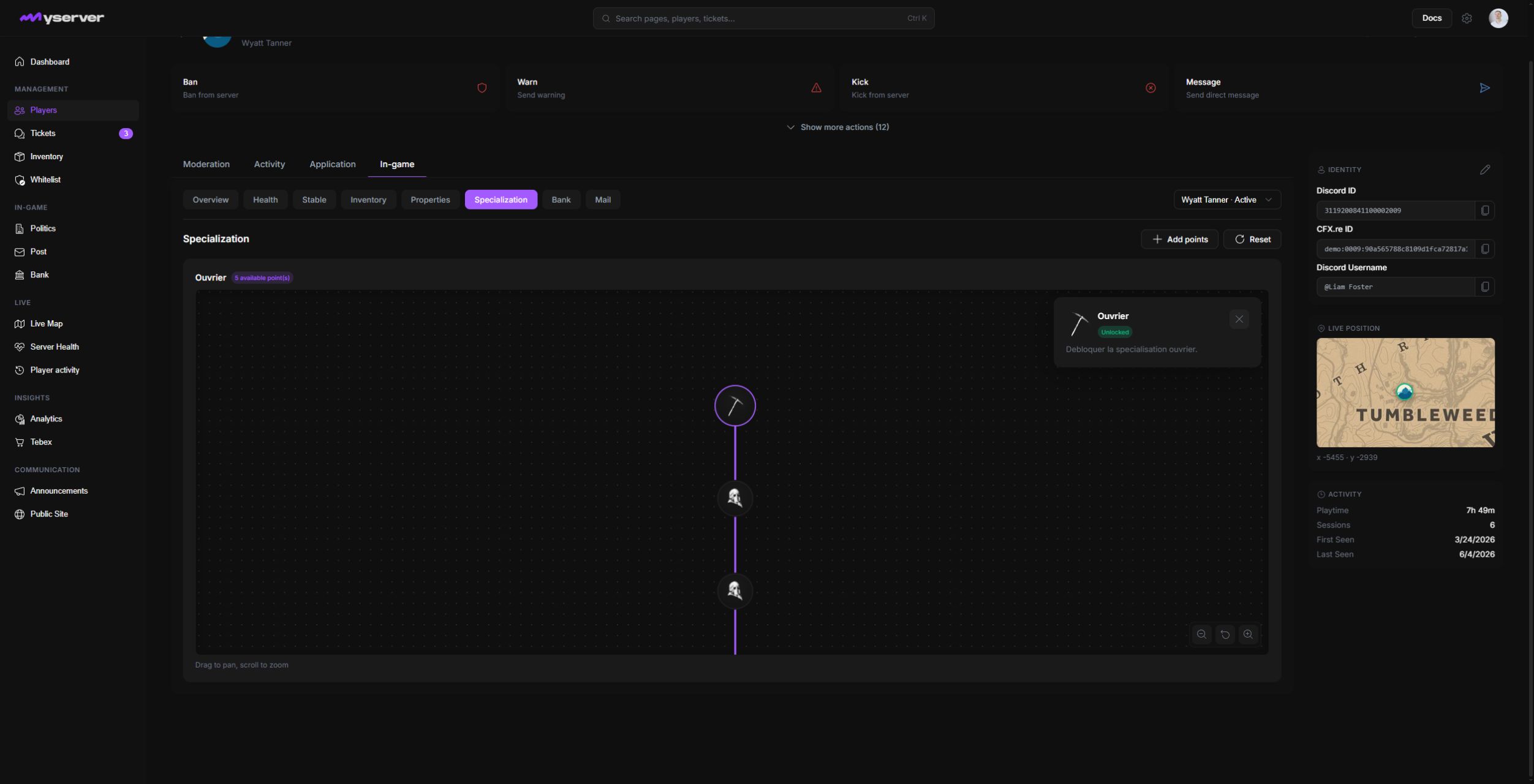
The node panel shows the node name, its Unlocked or Locked state, the exact bonus description, and the action available to authorized staff. Selecting Unlock or Lock opens a confirmation dialog before Platform sends the change to the server.
Add or reset progression
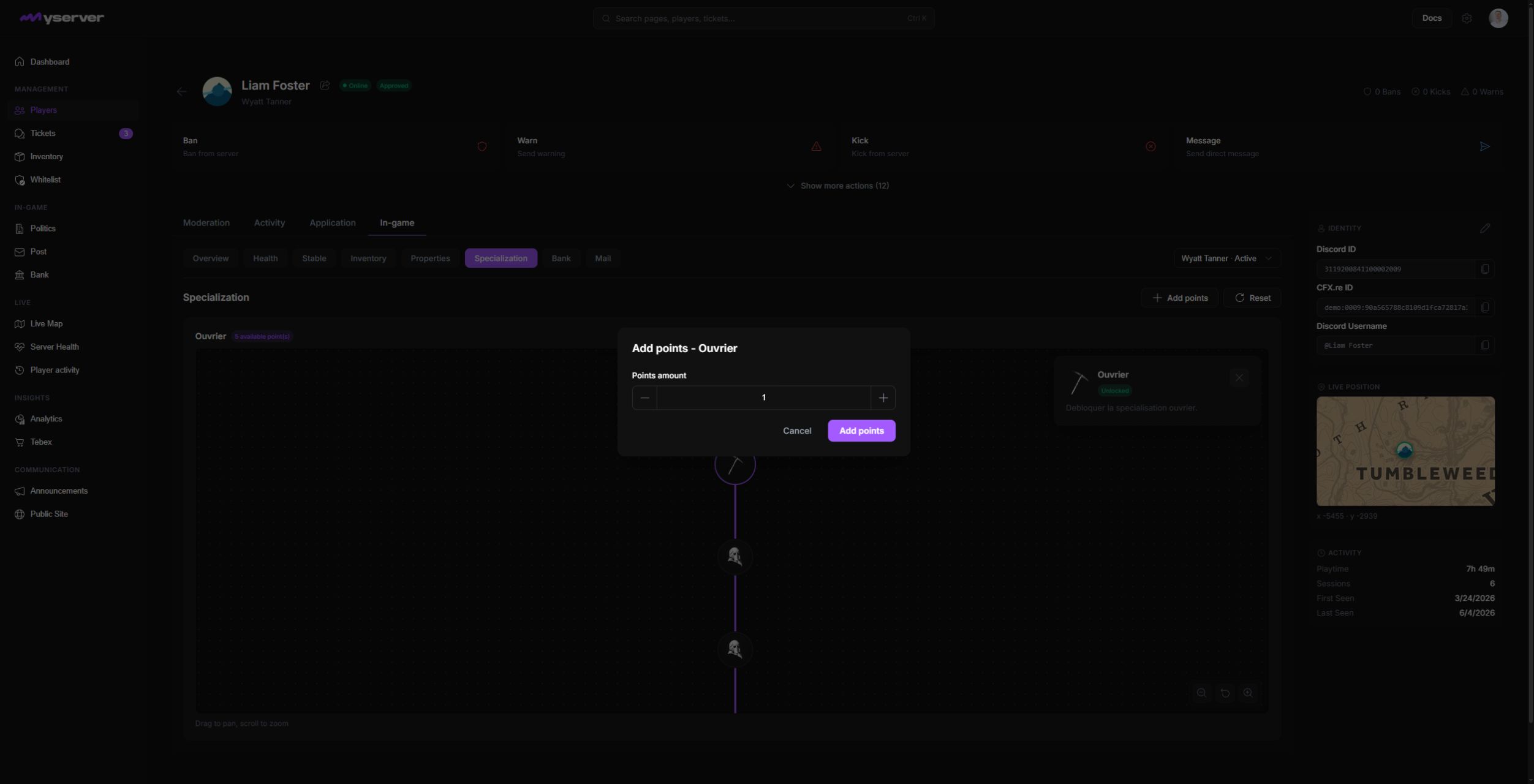
Select Add points to open the points dialog. Enter the number of points to grant, then review both the character selector and active specialization before confirming.
Select Reset to open the reset confirmation. A reset removes the character's active specialization progression rather than merely recentering the canvas. Adding points, unlocking or locking a node, and resetting progression all change live character data and should follow the server's staff policy.
Bank
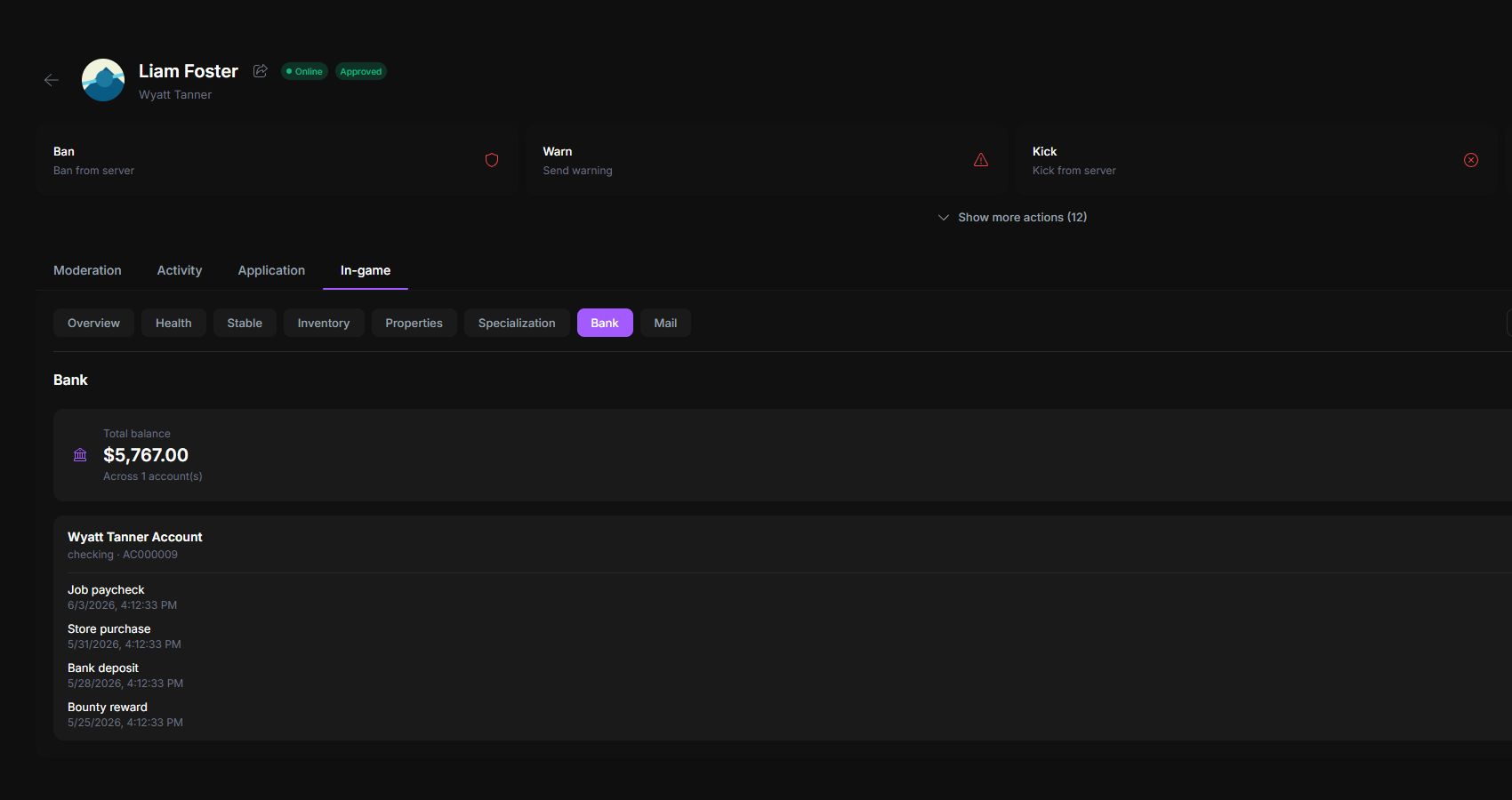
Bank shows the total balance, account count, account type and number, and transaction history for the selected character. Amounts and labels help staff reconcile a reported payment or reward. Money adjustments are available only when the integration and staff role allow them.
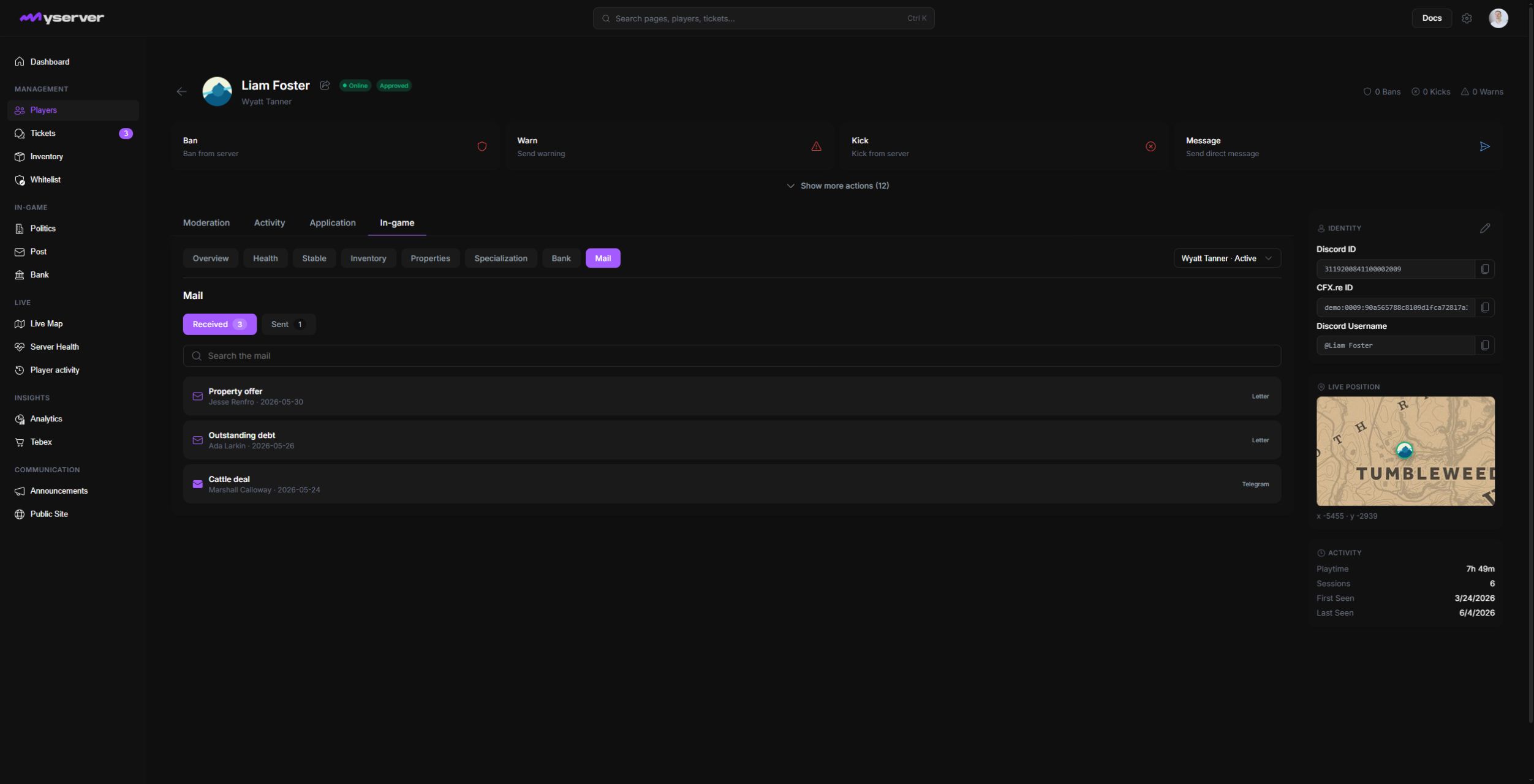
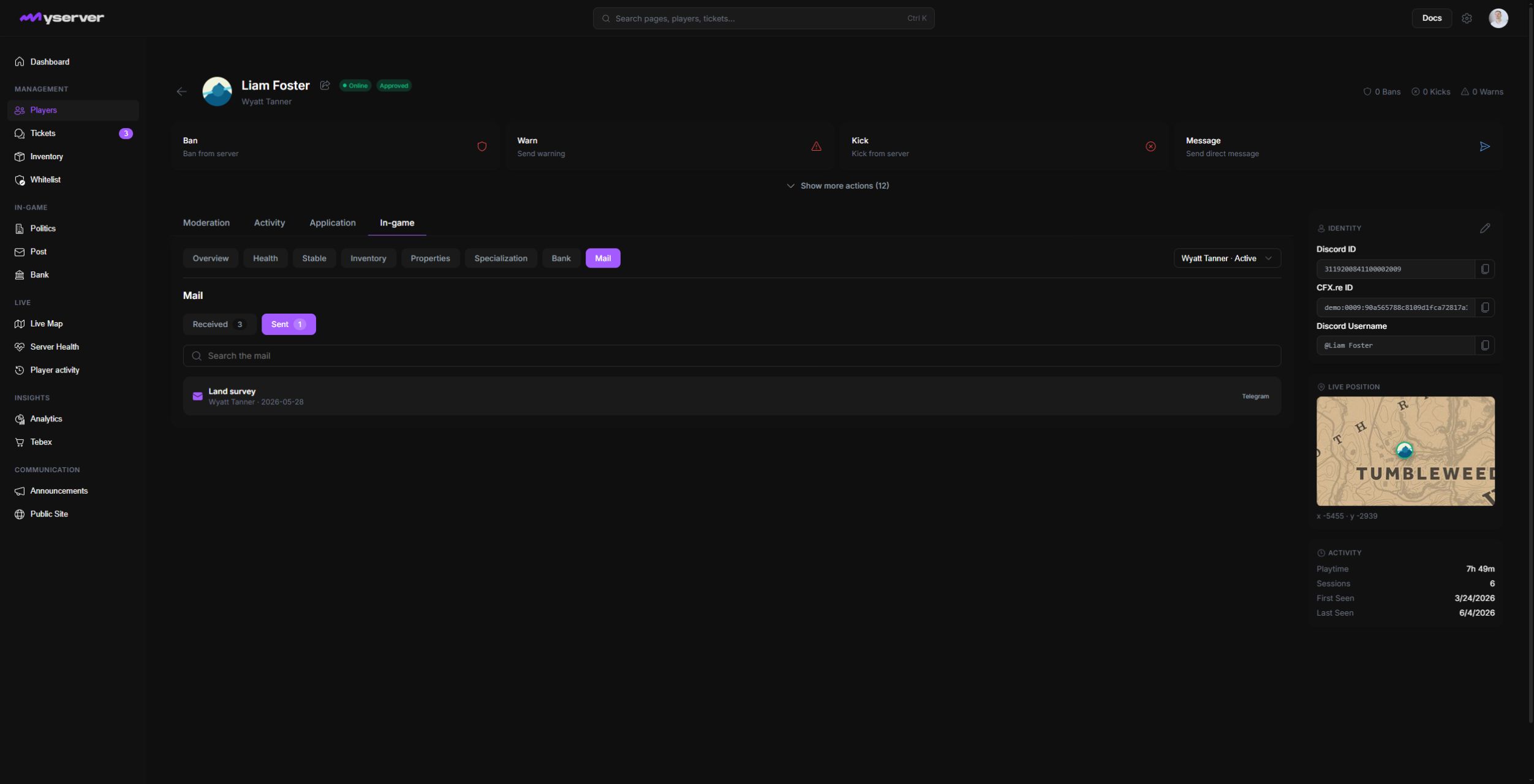
Mail is divided into Received and Sent. The number in each tab is the number of synchronized messages for the selected character. The search field filters the current tab by subject, correspondent, body, or signature.
- Received shows incoming letters and telegrams. Each row identifies the subject, sender, date, and format.
- Sent shows the same information for messages written by the character.
Select any row to open the original in-game document. This is more useful than reading the list alone because the viewer includes the message body and delivery metadata.
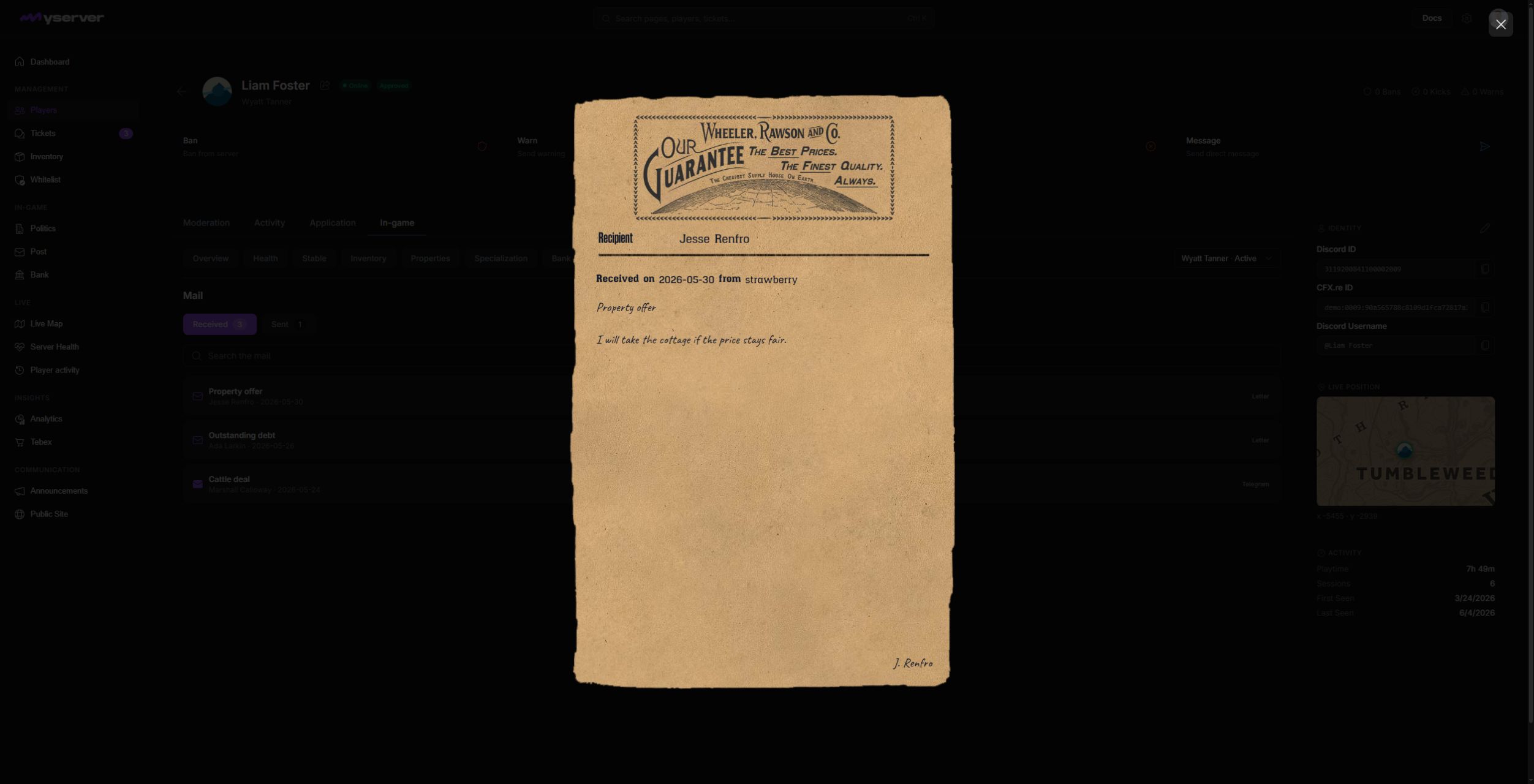
A letter shows the recipient, received date, origin office, subject, body, and signature on the original letter layout.
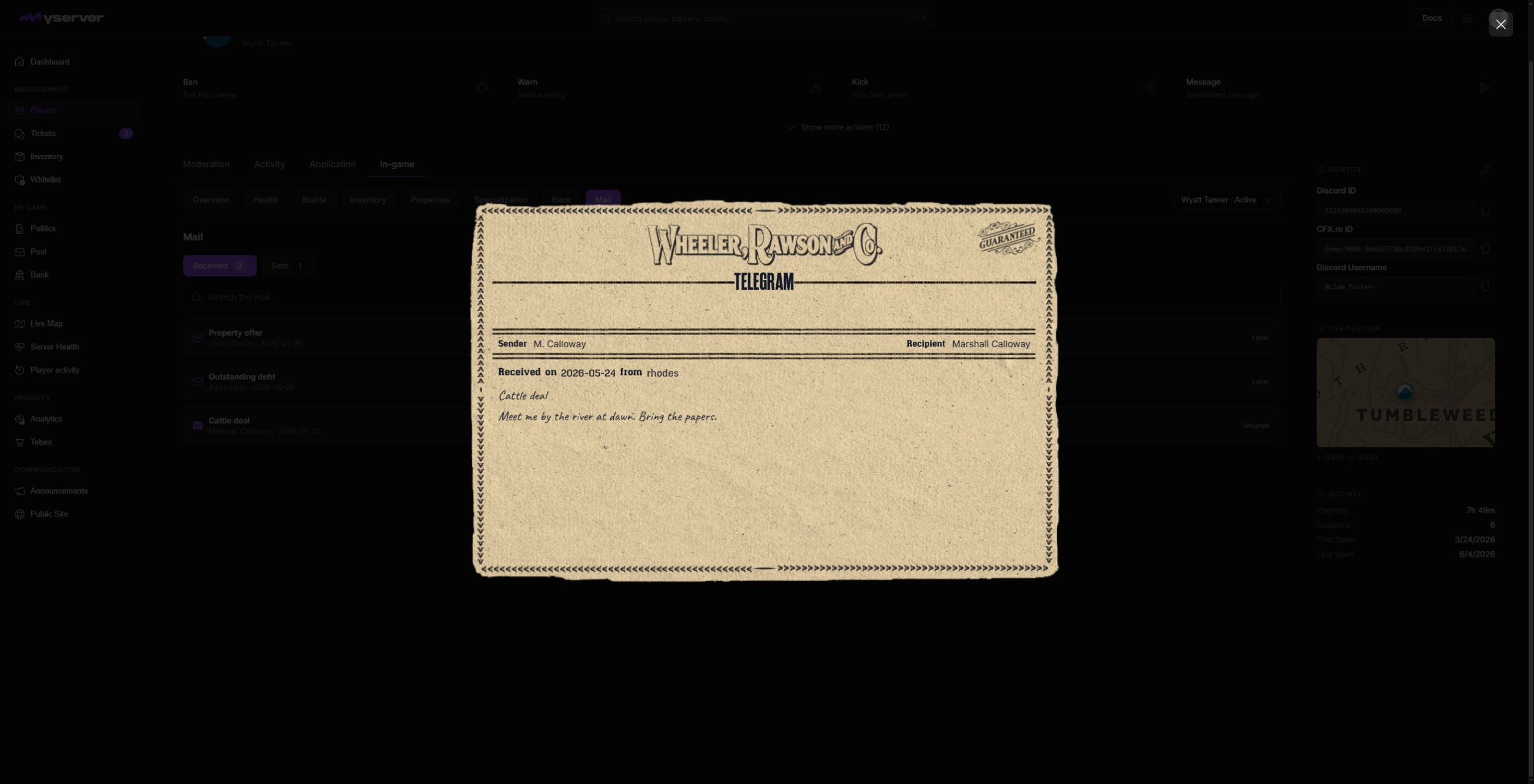
A telegram uses its own layout and exposes the sender, recipient, received date, origin office, subject, and body. Select Close in the upper-right corner to return to the same Received or Sent list.
Verify identity, position, and audit history
The side panel remains available across profile tabs:
- Identity shows connected Discord and CFX.re identifiers. Copy an identifier when matching an external report, and edit it only when you have verified the replacement.
- Live position shows the latest synchronized coordinates and map position when location data is available.
- Activity summarizes playtime, session count, first seen, and last seen dates.
Provide a clear reason for every moderation action. Use internal notes for context that other staff need later. Logs record who performed each supported action and when.
Before changing health, money, inventory, progression, properties, stable records, or character data, confirm the player, selected character, and exact target. Only supported and permitted tabs or controls appear.
Last updated: September 11, 2026