RedM / FiveM documentation
Murphy’s Platform
Daily operations
Inventory
Inspect players, stashes, and supported inventory data from one directory.
Inventory centralizes the item data exposed by compatible server scripts. It is useful for support, moderation, and audit work without requiring direct database access.
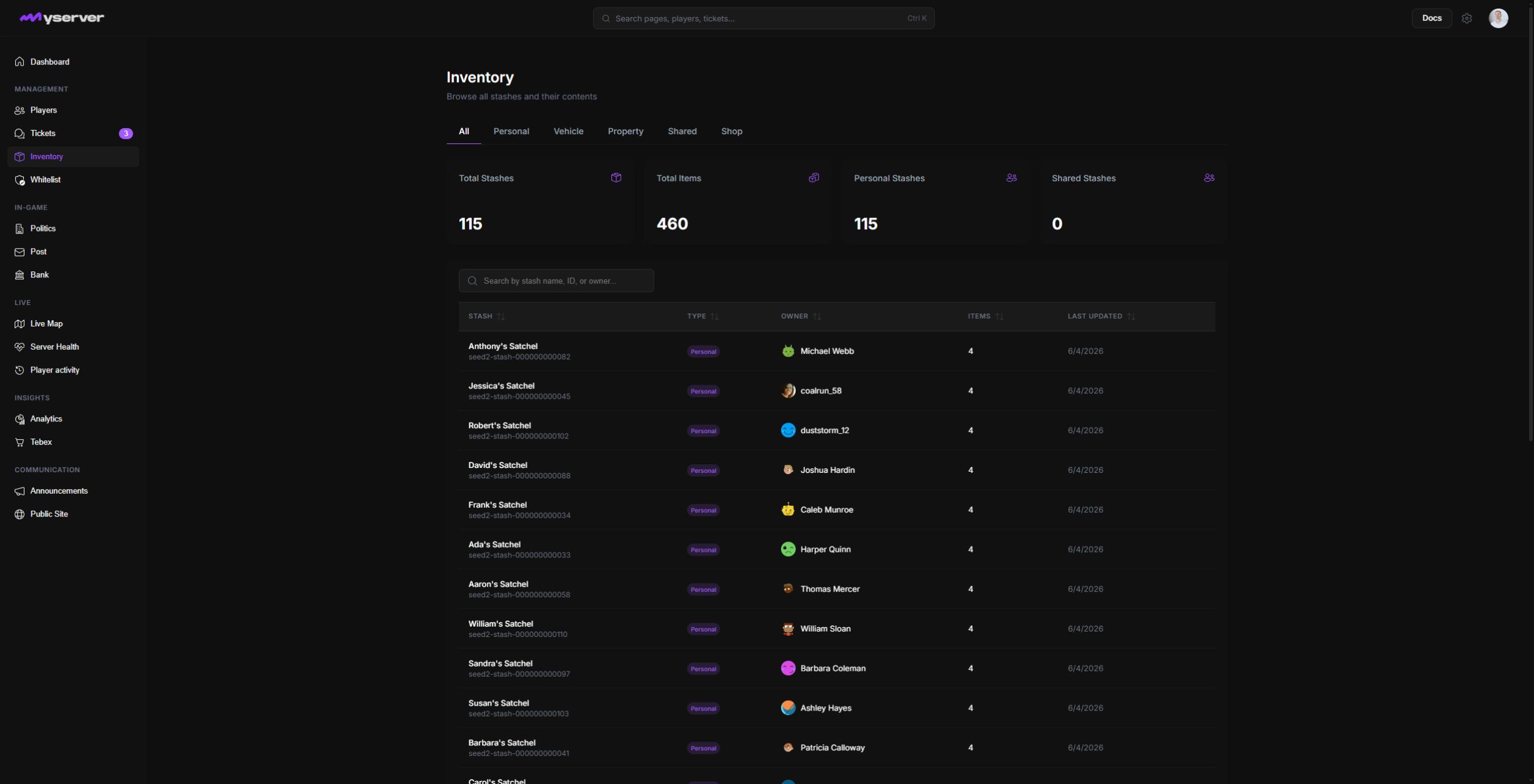
Inspect a stash before changing it
Use search and the All, Personal, Vehicle, Property, Shared, and Shop tabs to narrow the stash type. The available records depend on the installed scripts and the latest successful sync.
Click a row to open its stash sheet. The sheet identifies the owner and stash type, reports maximum weight and slots, and lists the current items. Closing the sheet makes no change.
Inside the stash sheet, select Add item. The nested dialog asks for the item's exact technical name and quantity; the name must match the item key configured on the game server. Nothing is written until Confirm is selected.
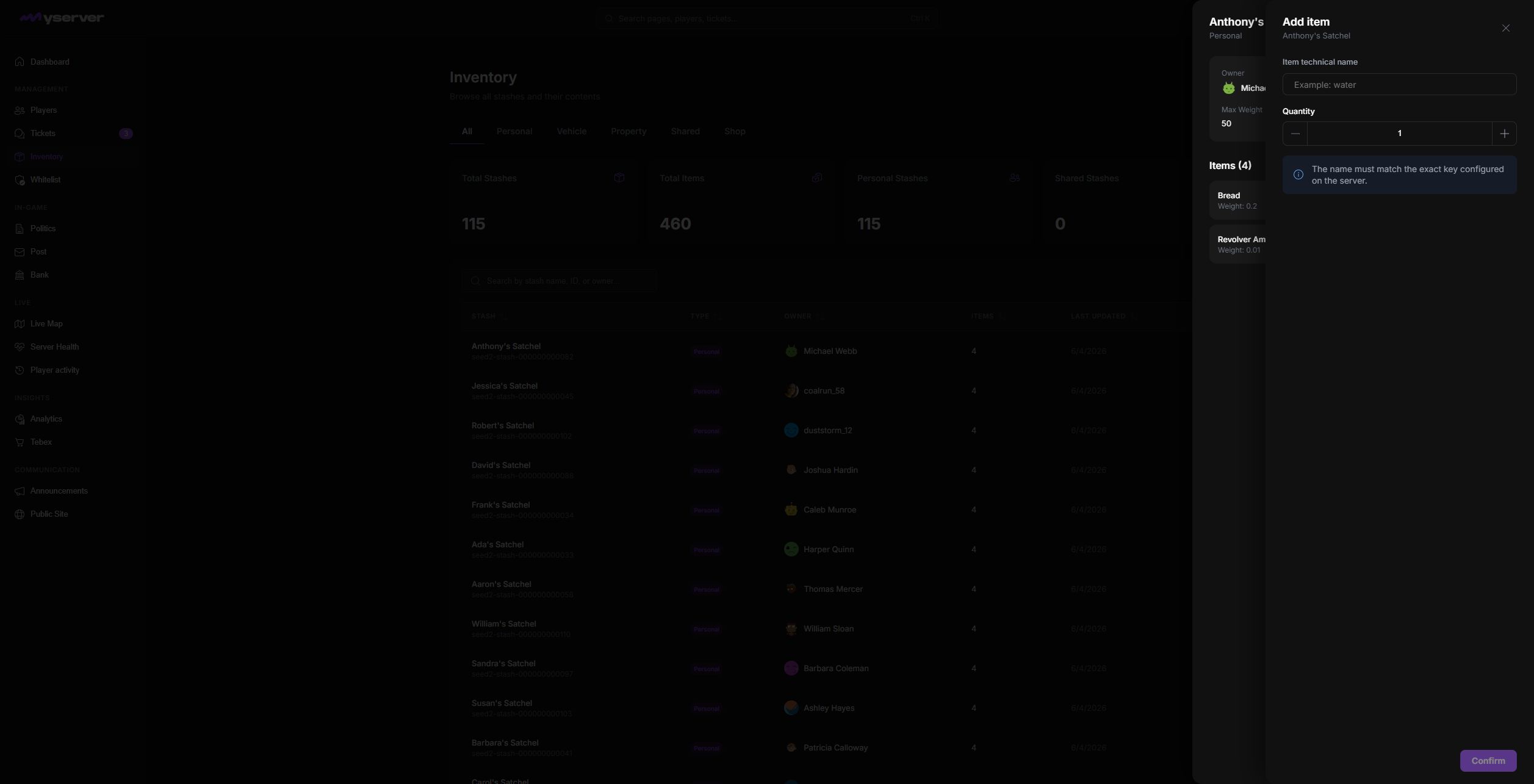
Treat synchronized inventory as live operational data
Inventory is a synchronized operational view. The time of the last sync matters when comparing Platform with the live server.
If a recent in-game change is missing:
- Confirm the related resource is running.
- Check Server Health and Logs for a failed sync.
- Open the player profile to confirm the selected character.
- Retry only after the source server state is known.
Some workspaces allow authorized staff to add, remove, transfer, or destroy supported items and stashes. These actions are permission-gated and logged.
Use the smallest change required, record the support or moderation reason, and verify the resulting server state.
Last updated: September 11, 2026