RedM / FiveM documentation
Murphy’s Platform
In-game systems
In-game admin menu
Open the staff panel, use server tools, and act on players without leaving the game.
The in-game admin menu gives authorized staff a focused version of the daily tools inside FiveM or RedM. It uses the same Platform identity and role permissions as the web dashboard; installing the resource does not grant every player access.
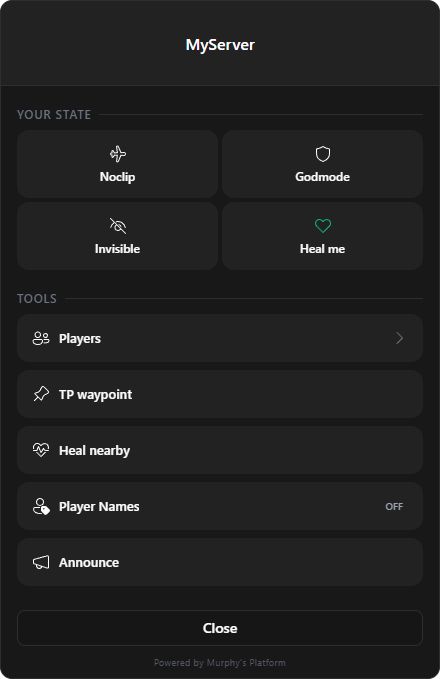
Open the menu and understand its home screen
Press F6 or run /admin. The murphy_platform resource identifies the current player, checks that the linked Platform staff account can open the menu, and issues a short-lived session.
The header uses the server logo saved in Settings > General. After replacing that asset, allow the resource to reconnect, then close and reopen the menu. The server name is the fallback while the logo is missing or unavailable.
Select Close menu or press Escape from the home screen to close it. Escape goes back one level when a player or sub-panel is open. The mouse controls the panel; normal movement remains available while combat, aim, interaction, inventory, and other conflicting controls are blocked.
If the menu does not open, confirm that:
murphy_platformis running and connected.- The player's Cfx.re or Discord identity matches a Platform staff member.
- The staff role has panel access and at least one permitted area or action.
The first group contains actions on your own character. Only controls allowed by the active staff role appear:
- Noclip toggles free movement. Use movement controls normally; Shift cycles the available speed.
- God mode toggles invincibility.
- Invisible hides your character from other players.
- Heal self restores the character and also uses the connected Doctor integration when available.
Active toggles remain visibly marked in the menu. Turn them off when the staff task is complete.
The second group contains server tools: Players opens the searchable directory; Teleport to waypoint moves the staff character to the active map marker; Heal nearby applies the permitted recovery action around the staff member; Player names toggles staff nameplates; and Announcement opens the server-wide in-game composer.
Each action is checked again by the server. Hiding a control in the interface is not the security boundary.
Manage a player without leaving the game
Select Players, search by the available identity, then click a player row. The detail view combines online state, playtime, whitelist information, identifiers, moderation history, notes, live position, connected characters, and actions.
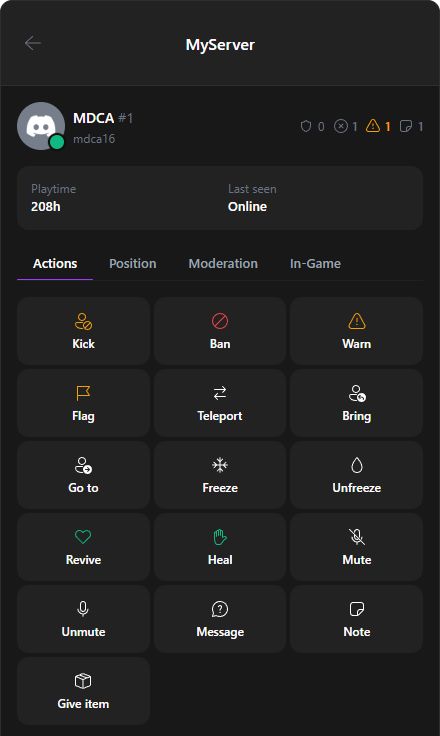
The player view is split into four tabs so staff can read context before acting:
Actions
Kick, Ban / Unban, and Warn collect moderation context and write to the player record. Flag records a support-risk marker. Teleport, Bring, and Go to move the target or staff character; Freeze / Unfreeze, Revive, Heal, Mute / Unmute, Message, and Give item affect the live target and are disabled when an online session is required. Note stores staff-only context. Server-defined custom actions appear only when configured and permitted.
Position
Use the live position to verify that the correct player is selected before teleporting. Position tools depend on an active synchronized session; stale or offline records remain useful for context but cannot receive live movement actions.
Moderation
Read bans, kicks, warnings, notes, flags, actor names, reasons, durations, and timestamps before creating another action. A temporary ban includes its expiration; unbanning changes the current player state without erasing the previous audit trail.
In-game data
Select a connected character before opening its Health, Stable, Inventory, Properties, Specialization, Bank, or Post panel. Those panels only appear when the corresponding Murphy plugin is installed, running, synchronized, and permitted for the staff role.
Staff identity
Linked Discord or Cfx.re identity
active Platform membership
panel access
Permission check
Players for moderation
Player data for live character actions
Announcements for broadcasts
Action result
FXServer command
Platform audit log
updated player or plugin record
Keep actions accountable and reversible where possible
Confirmation dialogs collect a reason, duration, amount, item, or other payload when required. Platform logs supported actions against the acting staff member and target. Verify the target identity, online state, and selected character before any destructive, financial, inventory, property, health, or moderation action. Close Noclip, God mode, Invisible, nameplates, and other temporary staff states when the intervention ends.
Last updated: September 11, 2026